

Table of Contents
Timelines
A timeline is the account that owns everything: your Sites, your TetherBoxes, your Cameras and every event they produce (see Definitions).
Most organisations need exactly one. This page covers the cases that need more, how large one should get, and how to move a TetherBox between them.
When You Need a Second Timeline
A user can be granted access to several timelines, so a second one does not lock anybody out of the first. What it changes is how you view the estate. In Live View you can watch cameras from every timeline you have access to. In Events you cannot: the event feed covers one timeline at a time. An operator working across several switches between them, or opens each in its own browser tab or window, spread across as many monitors as the desk has.
Use a second timeline where the division matches the business:
- An integrator with several customers - one timeline per customer, so each customer's users see only their own estate.
- A separate legal entity - a different company, with its own billing.
- A geographic split - a country, a region or a borough, where each is run by its own team, or whatever other boundary the organisation already works to.
- Home separated from work - User Permissions can keep staff out of your own cameras, and a separate timeline means that access cannot be granted by mistake.
Warning: Do not use a second timeline to organise the sites of one operation. Sites already do that, and User Permissions control who sees which. Split them across timelines and you can no longer review their events on one screen.
How Large a Timeline Should Get
There is no enforced limit, and timelines operate well beyond a thousand cameras.
We recommend splitting once a timeline passes around 1,000 cameras, whether those cameras are on one site or a hundred. Split along a division the organisation already works to (region, subsidiary, customer), so that each event feed stays a workable size.
Tip: If you are approaching 1,000 cameras and are not sure where to split, contact Support before moving anything. We can review how your sites and operators are arranged and recommend where the boundary should be.
Moving a TetherBox to Another Timeline
A TetherBox can be moved to a different timeline after activation, without a factory reset and without losing its history. Typical reasons: a unit was activated on the wrong timeline, a site changed hands, or a customer is being split out of an integrator's own timeline.
Who can do this: integrators and TetherX staff, on the TetherBox's own page.
- Move to Another Timeline: open the TetherBox and find the button with its other controls.
- Pick the destination: choose an existing timeline, or type a name to create a new one, then confirm with your own email and password.

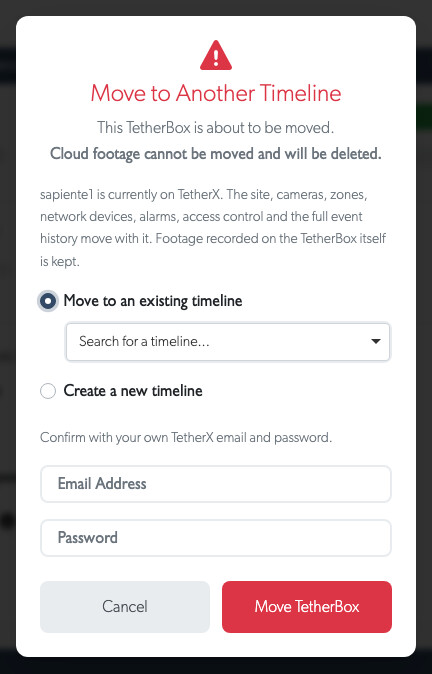
The move runs in the background, and we email you when it finishes. Large sites take longer, because every event and every recording index has to be re-pointed to the new timeline.
What Moves
- The site - moves outright when this is the only TetherBox on it. If the site holds other TetherBoxes they stay where they are, and the move creates a copy of the site on the new timeline for the unit that left.
- The cameras and their zones - with their settings, schedules and recording configuration.
- Network Devices, Alarms and access control - everything the TetherBox manages.
- The full event history - every event, clip and number plate the TetherBox has ever recorded.
- Footage on the TetherBox itself - kept, because the unit renames its own storage directory rather than starting from an empty one.
What Does Not Move
Danger: Cloud footage recorded before the move is permanently deleted. Cloud storage paths are built from the timeline name and cannot be renamed, so we cannot move the old footage with the TetherBox. Export anything you still need before you start the move.
Cloud recording itself is not cancelled. The subscription stays with the cameras, and once the move finishes each camera uploads to its new location as before, so everything recorded from that point on is in the cloud as usual. Before you confirm, the dialog shows how many cameras and how much footage the deletion affects.
Audit logs stay on the old timeline. They record what happened while the TetherBox was there, and moving them would falsify that record.
Before You Start
- The TetherBox must be online - it renames its own storage directory as part of the move, so an offline unit cannot be moved. See Offline if it is not connected.
- Export any cloud footage you need to keep - see cloud backup for how.
- Check who needs access afterwards - users are not carried across, so grant access on the new timeline through User Permissions.
Need More Help?
Ask through Support or browse the help documentation.
Referenced in: