

Table of Contents
User Permissions
Control what each user can see and do across the system.
Quick Start
- Go to Users → select user → Permissions tab
Creating a New User
First, choose the appropriate user type:
| Type | Use For |
|---|---|
| Admin | Site managers who need full control over users, cameras, settings, and audit logs |
| User | Receptionists, security guards, staff who need to view cameras or footage |
| Integrator | Security professionals who install and maintain systems - typically given temporary access during commissioning, then disabled. Do not choose this if you are the system owner or end user. |
See User Types for detailed descriptions of each type.
Steps
- Go to Admin → Users
- Click the New User dropdown and select the user type
- Fill in the General tab: first name, last name, email address
- Click the Permissions tab
- Choose which timeline(s) this user can access (see below for further information)
- Scroll to Zone & Camera Access Permissions and select which cameras the user can access
- Click Create
The user receives a welcome email with an activation link. They click the link to set their own password and can then log in.
Tip: If you close a new user form after editing it, TetherX asks whether to keep working or leave. The Escape key opens this choice without discarding the form.
Tip: The Welcome Email toggle is on by default. If disabled, use the Resend Welcome button on the Users list to send it later.
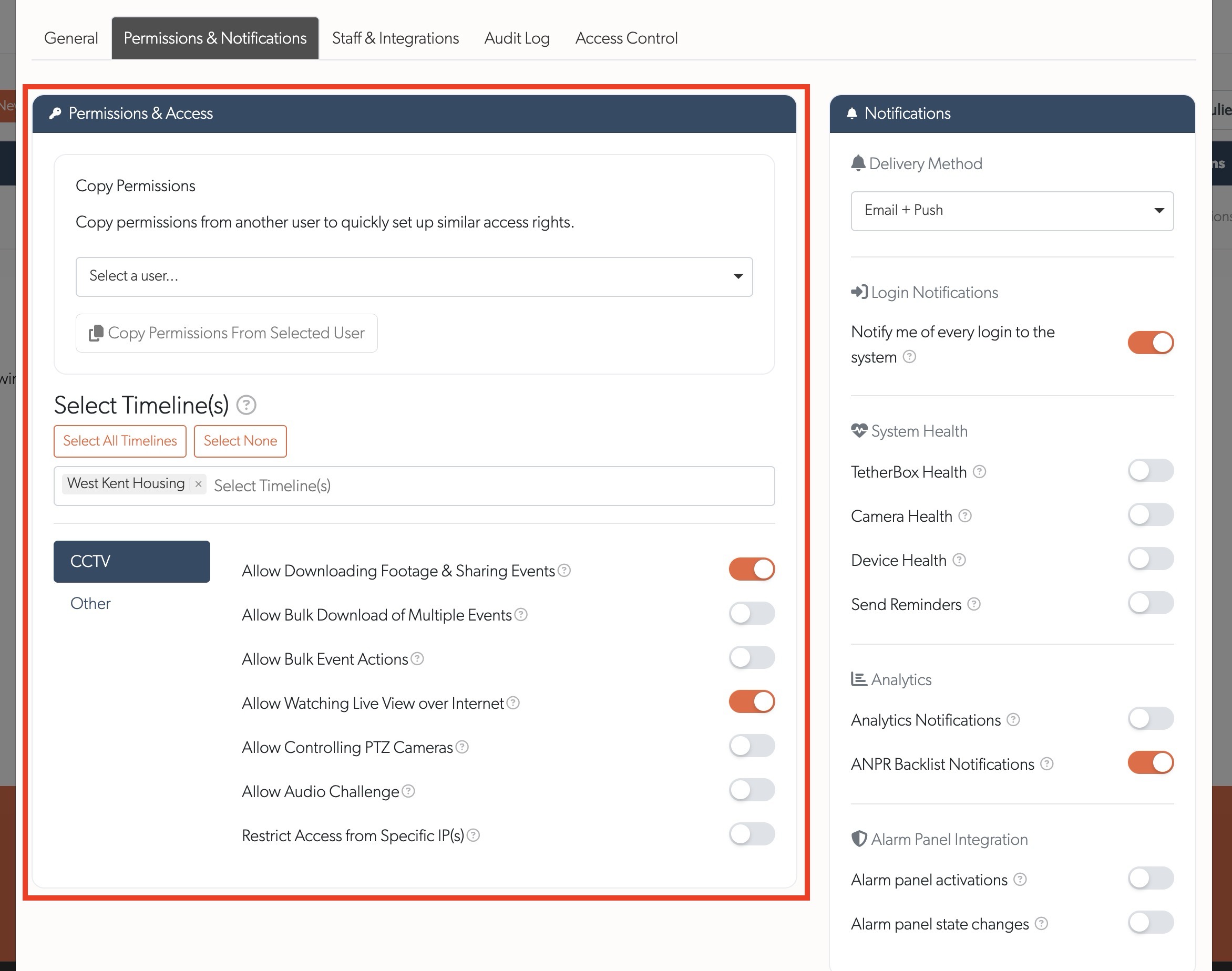
Permissions & Access
- Copy Permissions - Quickly duplicate access from another user. Select a user and click Copy Permissions From Selected User.
- Select Timelines - Choose which timeline(s) this user can access. A timeline represents a legal entity or organisation. Most users have access to a single timeline containing all their sites and cameras. Large organisations may create multiple timelines (e.g., by region or business unit) and grant users access to relevant timelines, see Timelines. After selecting timelines, use Zone & Camera Access Permissions below to restrict access to specific cameras within those timelines.
Limit an Account to Particular Sites
Administrators, integrators and distributors can be limited to selected sites on each timeline they hold:
- Open the account's Permissions tab.
- In Site access, turn off All sites for the timeline.
- Tick the sites the account should reach, then click Update User.
The account can then use only those sites' events, live view, recordings, cameras, TetherBoxes, alarms, map pins and equipment pages. A direct address for another site or its equipment is refused. An editor can grant only sites they can already reach.
The Users list marks an account limited to selected sites and opens a details panel naming the sites on each timeline. An account with unrestricted access shows its full access summary instead.
CCTV Permissions
Control what users can do with cameras and footage.
Live & Recording
- Allow Downloading Footage & Sharing Events - Can download and share recorded events.
- Allow Watching Live View over Internet - Can view cameras remotely (not just on-site).
Event Management
- Allow Bulk Download of Multiple Events - Download multiple events at once.
- Allow Bulk Event Actions - Perform actions on multiple events simultaneously.
Camera Control
- Allow Controlling PTZ Cameras - Pan, tilt, and zoom compatible cameras.
- Allow Talkdown - Activate audio on cameras (requires compatible speaker available on-site).
Information Access
- Allow Viewing Site & Camera Notes - View notes with attachments containing site information, emergency contacts, and response procedures.
People Counting
- People Counting Access - Open the People Counting page, which shows how many people, bicycles, vehicles and animals crossed the counting lines on each camera. Off for every account until it is switched on. See People Counting.
Security
- Restrict Access from Specific IPs - Lock access to on-site computers or office IP ranges.
- Two-Factor Authentication - Require a code from an authenticator app when signing in.
Control Rooms
A separate Control Rooms tab appears for Staff, Integrator, and Admin accounts only. It controls how that user sees Events.
- Force Operator Interface - Show events in the operator (control room) console instead of the standard event view, so you can demo or test the control room workflow without logging out and back in. Off by default; standard event view is used unless this is enabled.
Tip: Operator accounts always get the operator console, so this toggle does not appear for them. See Monitoring Station Operator Guide for how the console works and Control Room Software Integration for connecting external monitoring stations.
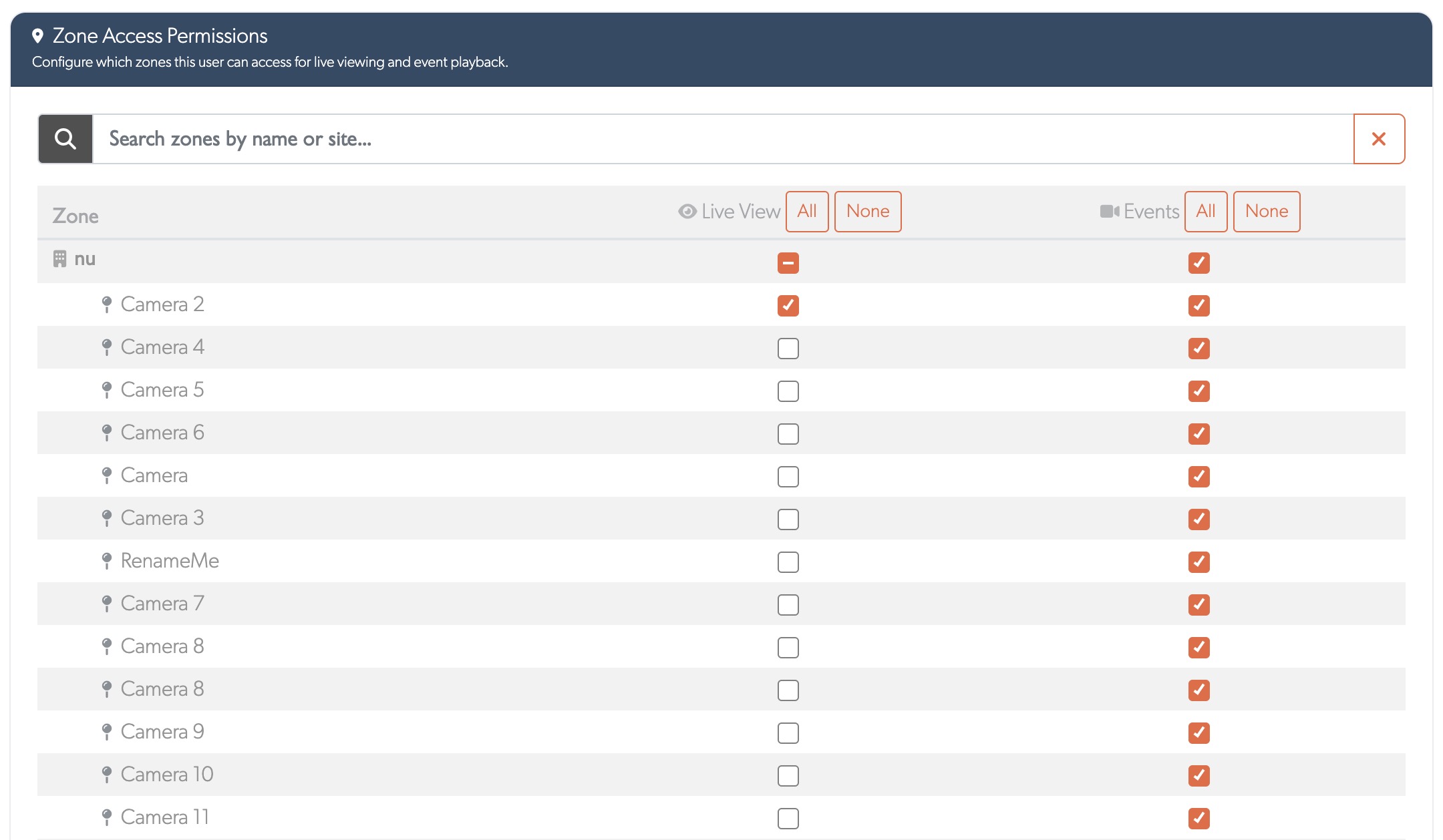
Zone & Camera Access Permissions
Grant access to specific cameras for standard users (appears for non-admin accounts).
- Zone & Camera Access Permissions table
Understanding the Columns
| Column | Description |
|---|---|
| Location Pin | Visual marker showing camera location (not a button) |
| Live View | Orange checkmark = user can watch live feeds; orange minus = some cameras selected |
| Events | Orange checkmark = user can search/playback events; orange minus = some cameras selected |
Quick Controls
- Use search to find cameras or zones by name.
- Click All or None buttons to quickly select/deselect all cameras across all zones.
- Check individual boxes for fine-grained control per camera.
Common Setups
| Role | Recommended Access |
|---|---|
| Security guard | Both Live View + Events on all cameras in assigned timeline |
| Receptionist | Live View only on entrance/lobby cameras |
| Investigator | Both Live View + Events on all cameras (may need multiple timelines) |
Tip: New cameras aren't automatically visible to existing users. You must explicitly grant access by checking the Live View or Events boxes in Zone & Camera Access Permissions.
Notifications
Each user's alert preferences - delivery method, login alerts, system health, event and alarm panel notifications - are set on the Notifications tab. The full list of settings, which user types receive what, arming, and reducing false alerts all live in one place: see Notifications (and Who Receives Notifications for the per-user-type breakdown).
Troubleshooting
User Can't See a New Camera
- Check if they have access to the Timeline containing that camera.
- Check if the camera is enabled in their Zone & Camera Access Permissions.
Users Can't See Cameras I Just Added
New cameras aren't automatically visible to existing users. You must explicitly grant access by checking the Live View or Events boxes in Zone & Camera Access Permissions.
Related Articles
- User Types - What Admin, User, Operator, Integrator and Guest each mean
- Notifications - Configure alerts, arming and reducing false notifications
- Control Rooms - Operator and supervisor roles for monitored sites
- Monitoring Station Operator Guide - Day-to-day operator workflow
- Getting Started for Integrators - Guide for security professionals
- Audit Log - Track user activity across your system
Referenced in:
- People Counting
- Control Rooms
- Monitoring Station Operator Guide
- Account Lockout
- Audit Log
- Definitions
- Getting Started with TetherX
- Health Report
- Questions to Ask Your Security System Supplier
- TetherBox Map
- Time-Limited User Access
- Timelines
- Two-Factor Authentication
- User Types
- Patriot Systems Integration
- Getting Started for Integrators
- Notifications
- TetherBox