

Table of Contents
Cloud Backup Setup
Cloud backup stores your footage in TetherX's secure data centres, protecting it against theft, fire, flood, and equipment failure. Even if your TetherBox is stolen or destroyed, your evidence remains accessible.
Tip: Cloud backup is per-camera. Start with your most critical cameras (entrances, cash registers, high-value areas) and expand as needed.
Tip: Learn more about how cloud backup protects your business at tetherx.io/cloud (opens in a new tab).
Why Cloud Backup?
| Risk | Without Cloud Backup | With Cloud Backup |
|---|---|---|
| TetherBox stolen | All footage lost | Footage safe in cloud |
| Fire or flood | Equipment and footage destroyed | Footage safe in cloud |
| Drive failure | Recent footage may be lost | Footage safe in cloud |
| Internet outage | Local recordings continue | Syncs when connection returns |
Checking Backup Status
Go to Admin → Cameras to see the backup status of all cameras.
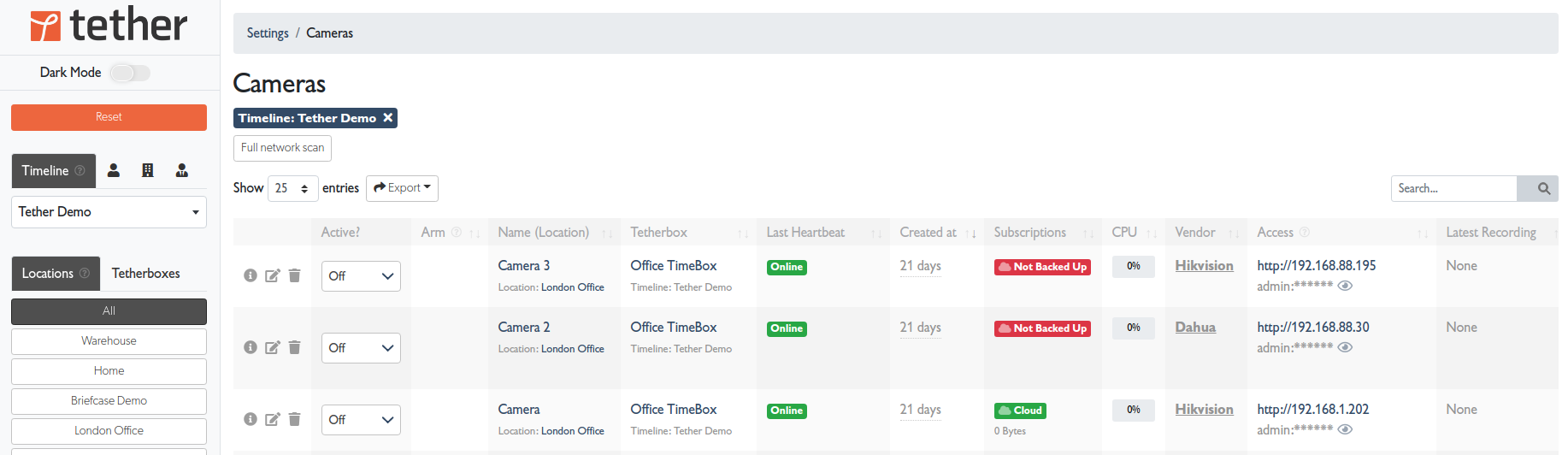
The Subscriptions column shows:
| Status | Meaning |
|---|---|
| Not Backed Up (red) | No cloud backup - footage only stored locally |
| Cloud (green) | Cloud backup enabled |
Enabling Cloud Backup
Step 1: Open Camera Settings
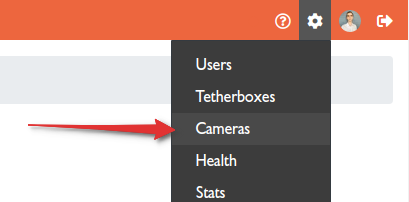
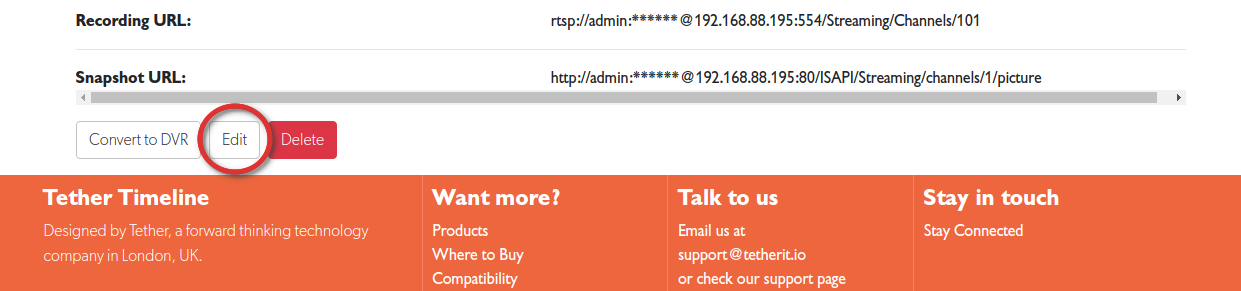
- Click on the camera name to open its details
- Scroll to the bottom and click Edit
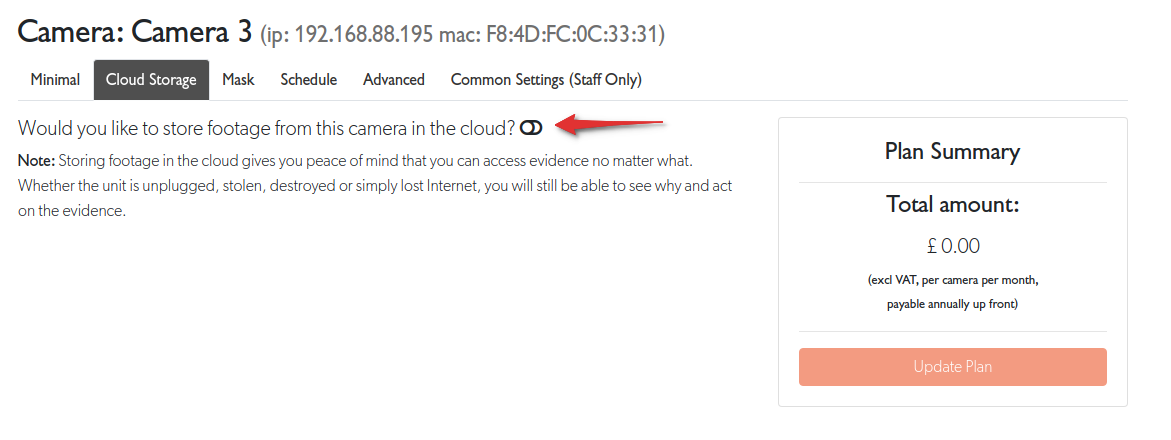
Step 2: Open the Cloud Storage Tab
- Select the Cloud Storage tab
- Toggle "Would you like to store footage from this camera in the cloud?" to ON
Step 3: Configure Your Plan
Choose between Cloud (preset options) or Customise (fine-tune each setting).
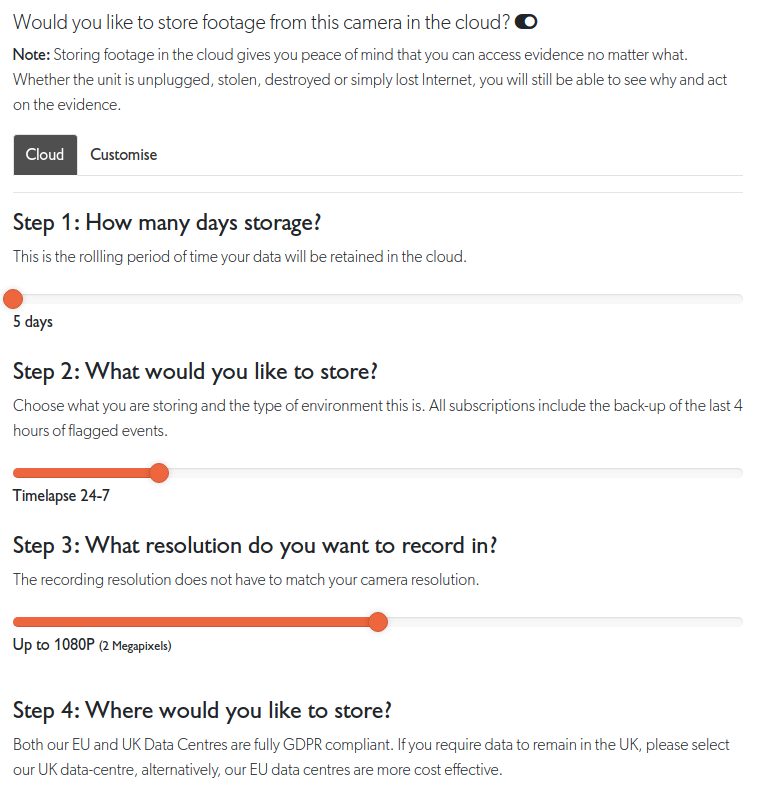
Step 1: How many days storage?
Select the retention period (how long footage is kept in the cloud). Options range from 5 days to 365+ days. Longer retention costs more but ensures footage is available for delayed incident reports.
Step 2: What would you like to store?
Choose what gets uploaded:
| Option | Best For |
|---|---|
| Timelapse 24-7 | Low-cost overview - snapshots every few seconds |
| Events only | Motion/analytics events - most cost-effective for full video |
| Video with low motion | Quiet environments like offices |
| Video with 50% motion | Moderate activity like retail |
| 24/7 continuous | Maximum protection - everything uploaded |
Tip: All plans include the last 4 hours of flagged events, regardless of the recording type selected.
Step 3: What resolution?
Select the cloud recording resolution. Higher resolution means more detail but higher costs:
- 720p (1 Megapixel) - Good for general coverage
- 1080p (2 Megapixels) - Standard for most installations
- 4K (8 Megapixels) - Maximum detail for critical cameras
Tip: Cloud resolution doesn't need to match your camera's native resolution. You can record 4K locally and back up 1080p to the cloud.
Step 4: Where would you like to store?
Choose where you would like cloud recording to be stored. Available regions include UK, EU, and others depending on your account.
Step 4: Review and Subscribe
The Plan Summary shows your selections and monthly cost.
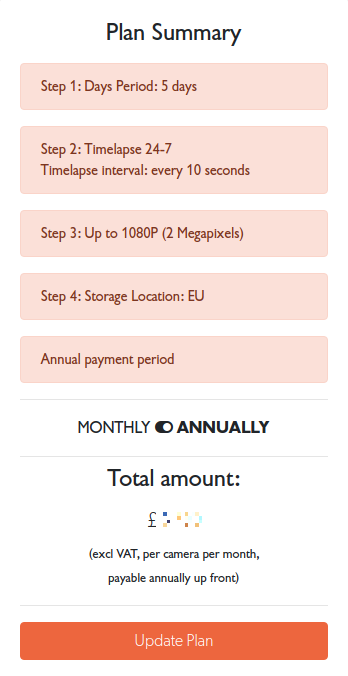
Click Update Plan to activate cloud backup. Billing begins immediately and footage starts uploading within minutes.
Estimating Costs
Use the Quote Tool to calculate costs and bandwidth requirements before committing. The tool shows:
- Monthly price per camera
- Upload amount (GB/month) - data transferred
- Upload speed (Mbit/s) - minimum bandwidth needed
How Cloud Sync Works
Once enabled:
- New recordings upload automatically as they're captured
- During Internet outages, local recording continues and syncs when connectivity returns
- Flagged events are prioritised for upload
- Cloud footage is accessible from anywhere via the TetherX platform
Managing Subscriptions
To change or cancel cloud backup:
- Go to Admin → Cameras
- Click the camera name → Edit → Cloud Storage tab
- Adjust settings and click Update Plan, or toggle off to cancel
Warning: Cancelling cloud backup removes access to cloud-stored footage after the current billing period ends. Download any footage you need before cancelling.
Related Articles
- Quote Tool - Calculate costs and bandwidth requirements
- Service Subscription Billing - Understanding the billing cycle
- TetherBox Recording Capacity - Local storage planning
- Events - Accessing and downloading footage
- Exporting Camera Data - Export camera details and bulk snapshots without a cloud subscription
Referenced in: