

Table of Contents
Factory Reset
Danger: Factory resetting a TetherBox permanently deletes all devices, cameras, and recordings - including cloud backups. This action cannot be undone.
When to Factory Reset
Factory reset is recommended when:
- Relocating hardware - Moving a TetherBox to a different site or customer
- Decommissioning - Removing a TetherBox from service permanently
- Starting fresh - Clearing all configuration to begin setup again
- Reducing report clutter - Removing offline units you no longer manage from your Health Report
When NOT to Factory Reset
If you simply want to stop a TetherBox from recording without deleting its data, mark it as Inactive instead.
Disabling a TetherBox
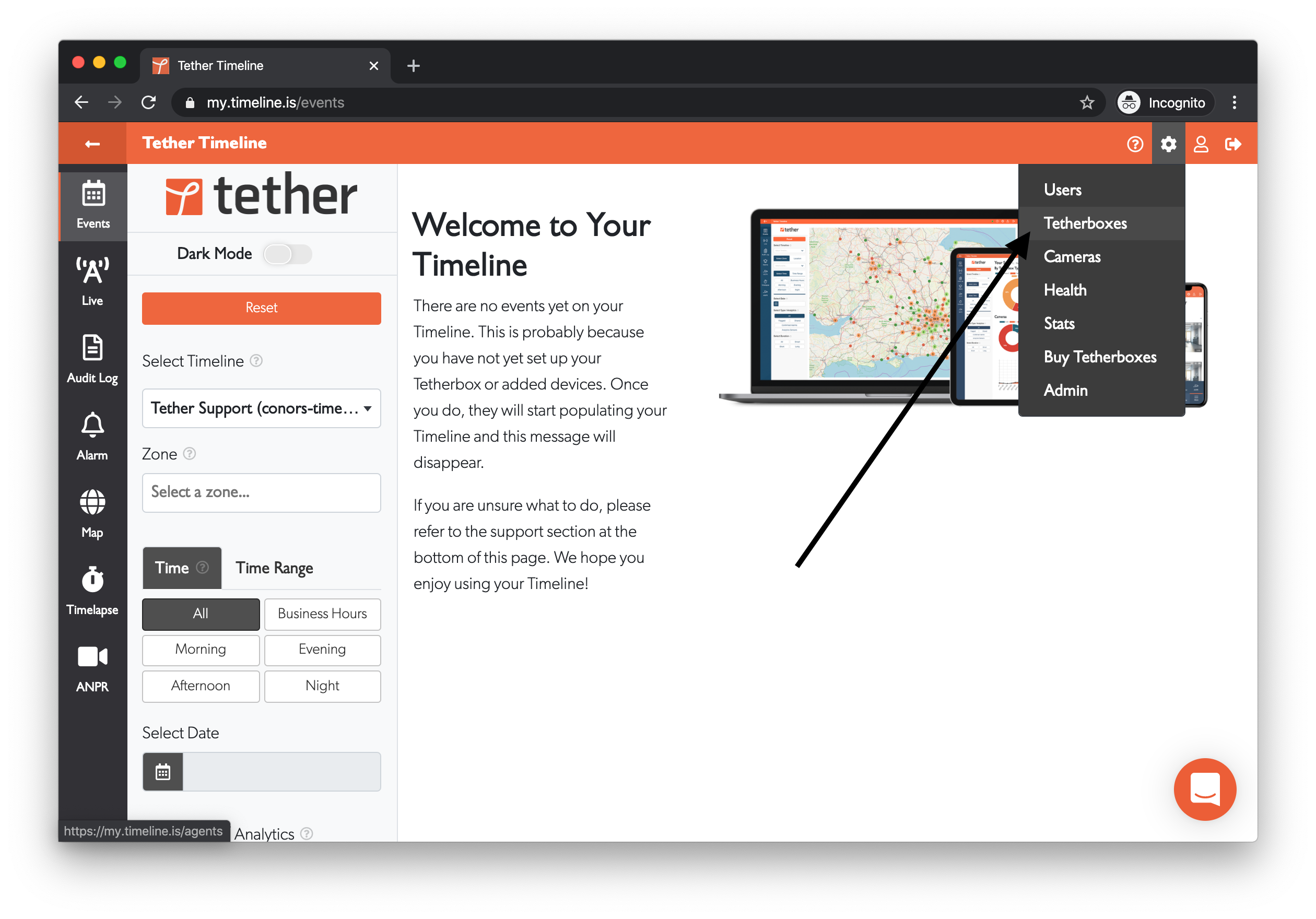
- Go to Admin → TetherBoxes
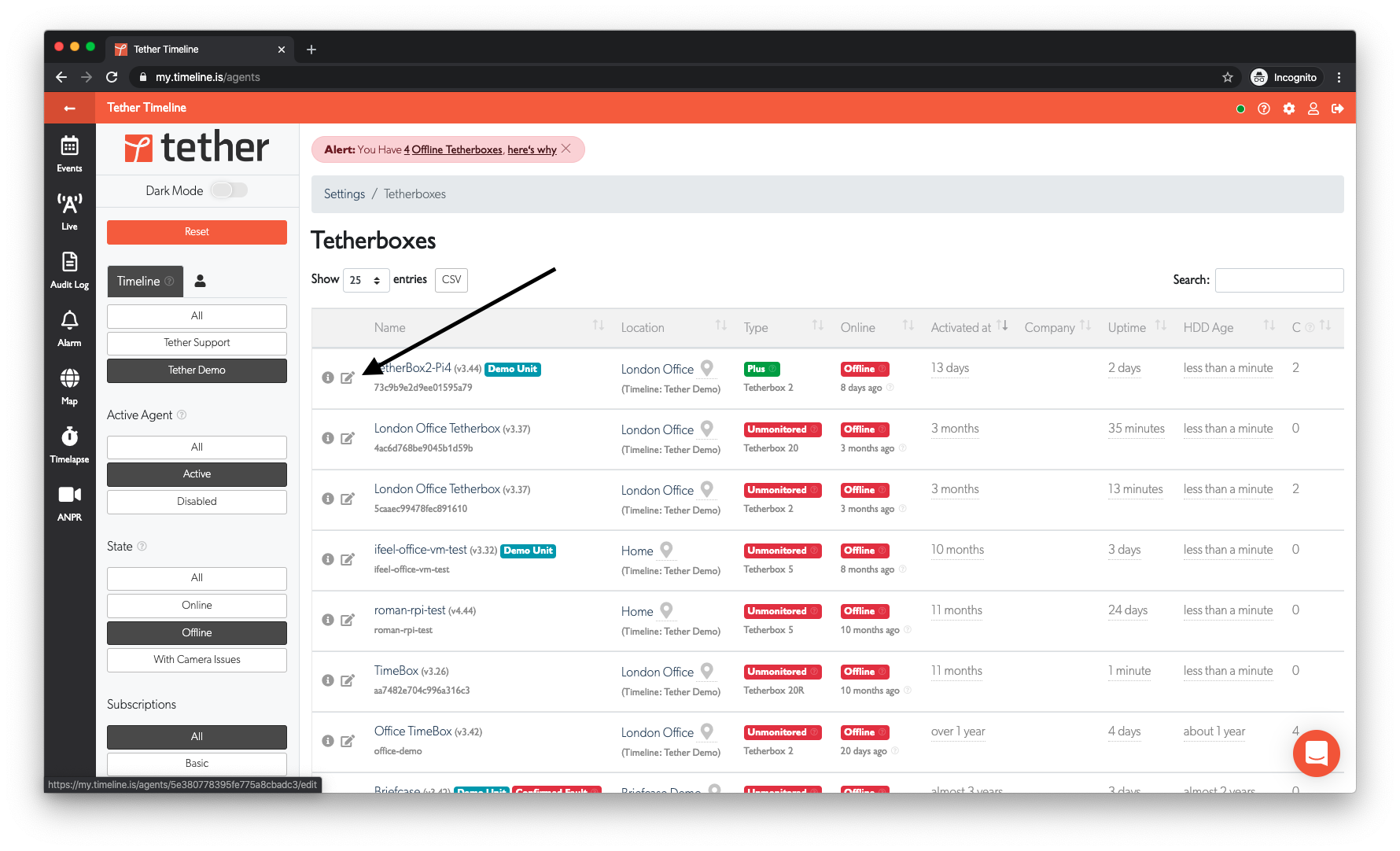
- Click on the TetherBox you want to disable
- Scroll to the Settings section and untick the Active? checkbox
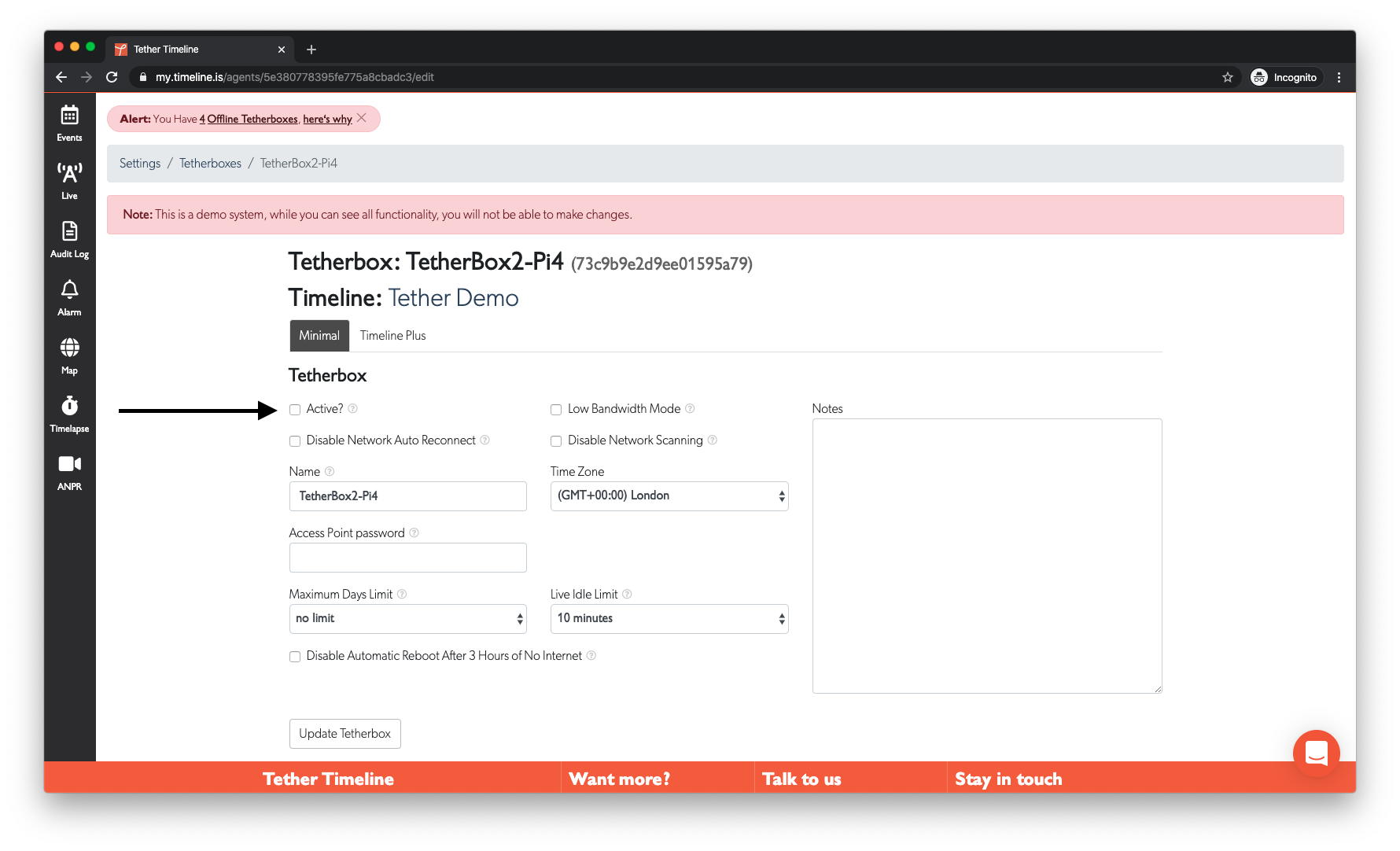
- Click Update TetherBox to save
What Happens When Disabled
When you mark a TetherBox as inactive:
- Recording stops - No new recordings are saved
- Data is preserved - All existing recordings, cameras, and configuration remain intact
- Hidden from lists - The TetherBox won't appear in most lists by default
- No health alerts - You won't receive offline alerts for this unit
- Billing continues - Any active subscriptions remain active until cancelled
Viewing Disabled TetherBoxes
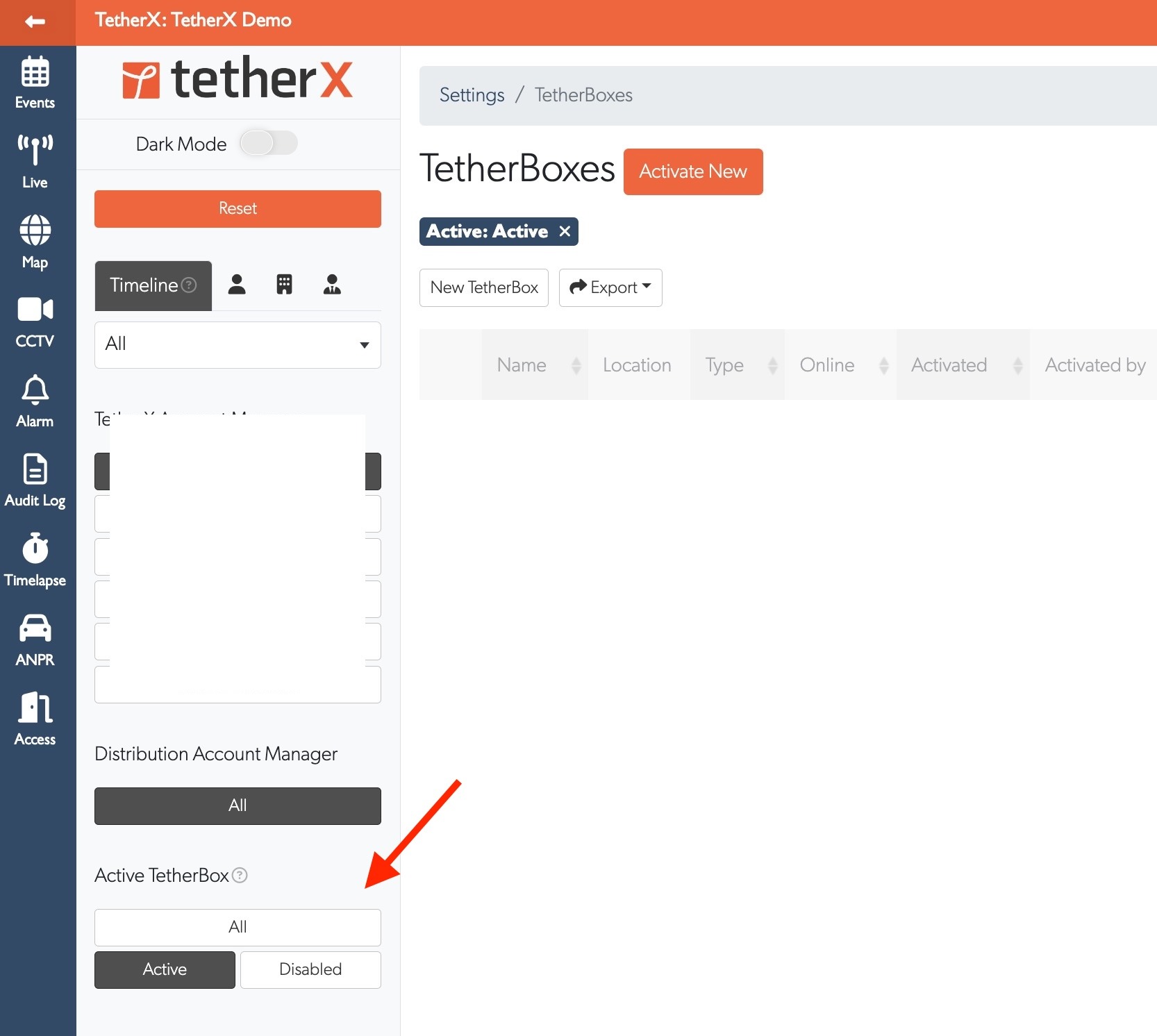
Disabled TetherBoxes are hidden by default. To view them:
- Go to Admin → TetherBoxes
- Use the Active TetherBox filter in the sidebar
- Select All or Disabled to show inactive units
Re-enabling a TetherBox
To re-enable a disabled TetherBox:
- Find it using the Disabled filter
- Click to open the TetherBox
- Tick the Active? checkbox
- Click Update TetherBox
Tip: Use the Active toggle when temporarily decommissioning a unit, moving it to storage, or when you want to keep historical data but stop new recordings.
How to Factory Reset
Use this only when you want to permanently remove the TetherBox and its data. To take a unit out of service temporarily, use Inactive instead.
Go to TetherBoxes, open the unit, then scroll to Actions.
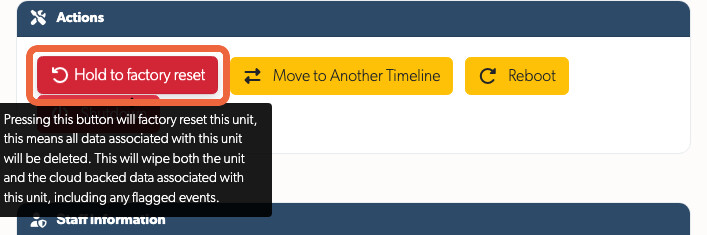
Click Factory Reset. It changes to Hold to factory reset; press and hold it for three seconds.
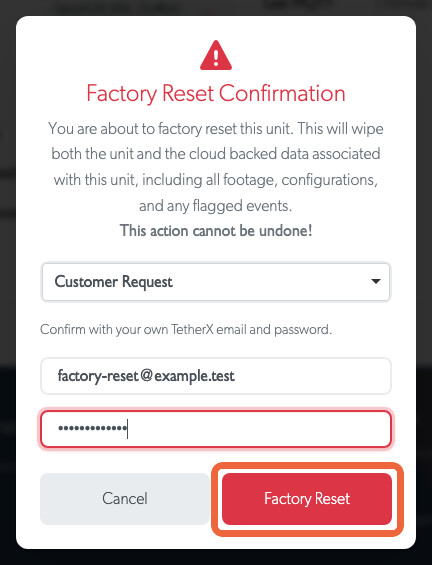
- Select a reason, enter your email and password, then click Factory Reset.
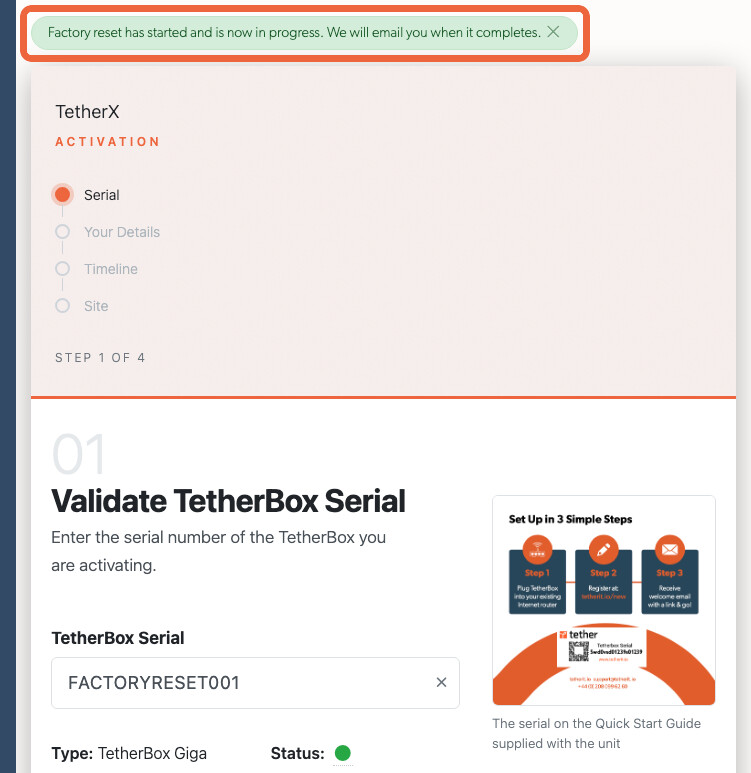
- The activation screen confirms that the request has started. The reset may take up to 24 hours; an email confirms when it is complete.
While the Reset Is Running
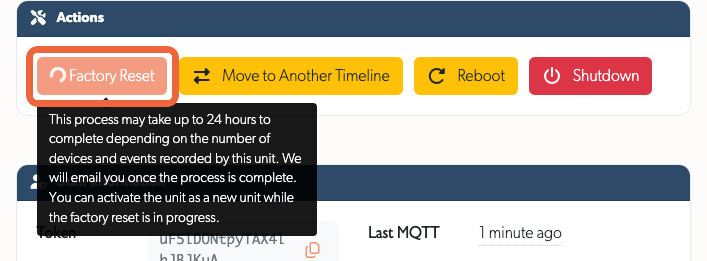
If you return to the TetherBox page, Factory Reset is greyed out with a spinner. Hover over it to see the expected completion time and email confirmation; you cannot start another reset while one is running.
When complete, the TetherBox returns to its initial state and is ready for reactivation on any timeline.
Tip: You can factory reset a unit even if it is offline. The platform data will be cleared immediately, but the unit itself will not be wiped until it reconnects to the Internet.
Warning: There is no way to recover data after a factory reset. See Replacing a TetherBox for details on what is and isn't preserved.
Referenced in: