

Table of Contents
Q4 2026 Release Notes
- Light, relay, strobe, siren and Garrison toggles share active styling and compact panel spacing, with state shown in tooltips instead of extra labels. Pending commands gently pulse instead of showing a loading cursor, respecting reduced-motion preferences. The duplicate PTZ Light control and unused wiper placeholder have been removed. Navigation ignores late Light replies and cancels queued deterrent commands.
- The live-view latency tooltip shows the active video transport and stream quality. The camera menu also marks the active transport when playback falls back from the preferred transport.
- TetherX retains qualified numeric person-age estimates and labels them as approximate years on event details. Malformed values are reported. Demographics remains disabled until model accuracy and release checks pass.
- Added an opt-in weapon detection camera control and weapon labels on AI event details.
- Staff can enable experimental cleanliness detection per camera or in bulk and set how often it checks a whole camera image, once a minute or less often. It is off by default and requires compatible TetherBox AI software. Camera settings give the AI customisation options a wider column.
- Camera automations can alert on persistent litter, spills, overflowing bins or debris piles in named areas when the installed cleanliness model supports them. A finding must appear in three consecutive checks before it counts; alerts use the rule's existing recipients, hours and activation limits.
October - December 2026 · Work in progress
Find footage in your own words
Open Find footage on Events and describe what you need, such as “a person wearing a red hat around noon”. Review the locations, dates and detections before opening the results. Combine a date range with daily hours, such as mornings throughout June, or dictate a search in supported browsers.
Camera descriptions and keywords help match places such as loading docks and service yards. Online recording cameras generate a description from a live image; Camera details lets you correct it or request an AI refresh.
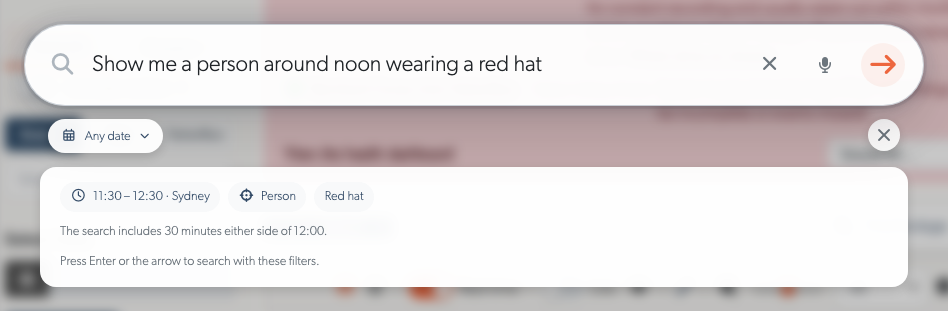
See Natural Language Search for examples and search controls. Appearance searches need the corresponding detections recorded by the camera; they cannot add detail to older events.
More precise AI detections and counting
- Animal and vehicle types: TetherX AI distinguishes dogs, cats and birds, and cars, motorcycles, buses and trucks. Combine a type with a colour in Appearance or Find footage, such as a brown dog or a white bus. Types become available after a camera records them.
- Bicycles: Search and count bicycles separately from vehicles. A cyclist counts as both a person and a bicycle; bicycle detections have no colour.
- Missing PPE and covered faces: Search for people without hi-vis or a hard hat, or with a covered face. Event details show what was detected. People the AI cannot assess are not marked as missing PPE.
- Vehicle triggers: Car, Truck, Bus and Motorcycle each offer moving and stationary triggers. Vehicle selects all four types. The previous Vehicle trigger is renamed Car, reflecting what it matched; check this distinction when configuring rules.
Counting filter refreshes: Changing intervals or clearing filters updates the chart without a reload, including when another tab is open on a different Timeline. Selecting a date opens Hourly automatically; Daily returns to the overview in one click. Drag across the chart or set From and To to focus on a period, with matching totals and exports. Thin vertical lines mark each hour. Angled labels use regular clock intervals and fit more times into narrow charts, with finer labels when viewing a shorter period. The loading indicator stays centred over the chart during refreshes. Daily fits more date labels on phones and shows every date where space allows. The calendar icon opens the date picker, and selected intervals stay highlighted. An info button beside the page title opens the counting explanation when needed.
Counting charts: Compare people, bicycles, vehicles and animals with separate colours, solid entries and dashed exits. Use the filters to choose daily, hourly, 15-minute or five-minute intervals, a day, time range, site, camera, line and class. Choose a date to inspect that day in shorter intervals. Cars, lorries, buses and motorcycles are counted separately when the TetherBox supplies their type. The chart replaces the table; CSV and Excel exports remain available above it.
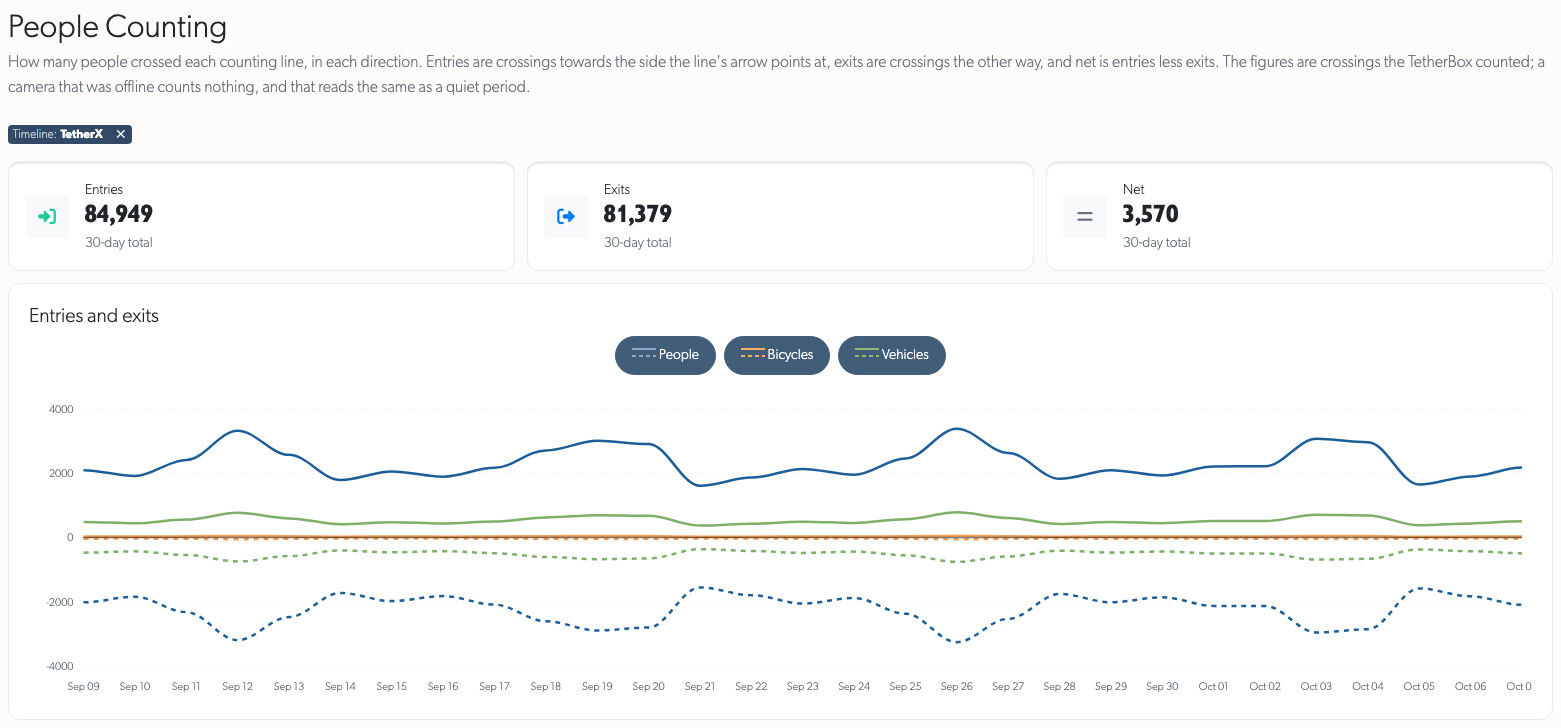
These detections require updated TetherBox AI software. PPE and Face covered detection are off by default; contact TetherX support to enable them for a camera. See TetherX AI and People Counting.
Camera automations
- When the corresponding detection is enabled, Staff can count assessed PPE, covered faces and estimated age/apparent gender in camera regions. Experimental weapon filters require matching version 4 automation support on the TetherBox and detector.
- Rules offer explicit On/Off for compatible camera sirens, strobes and selected-camera Garrison actions. Ordinary illumination has a separate Light action using its existing permission. Off actions need no duration or recording and do not restore outputs when the rule clears.
Automations can alert when a counter is unattended or a crowd forms. The five-step builder lets you draw a named region, set count thresholds and durations, choose active hours, and review the actions before saving.
Actions include user notifications, email, recorded audio, PicoFlex outputs and supported camera deterrents. Garrison activates sirens and strobes on selected cameras at the same site. Saved rules show their status and recent activations.
Rules can also count only people missing PPE or with covered faces when those detections are enabled. Alerts give both the matching count and the total in the area, such as “1 without hi-vis (3 in area)”.
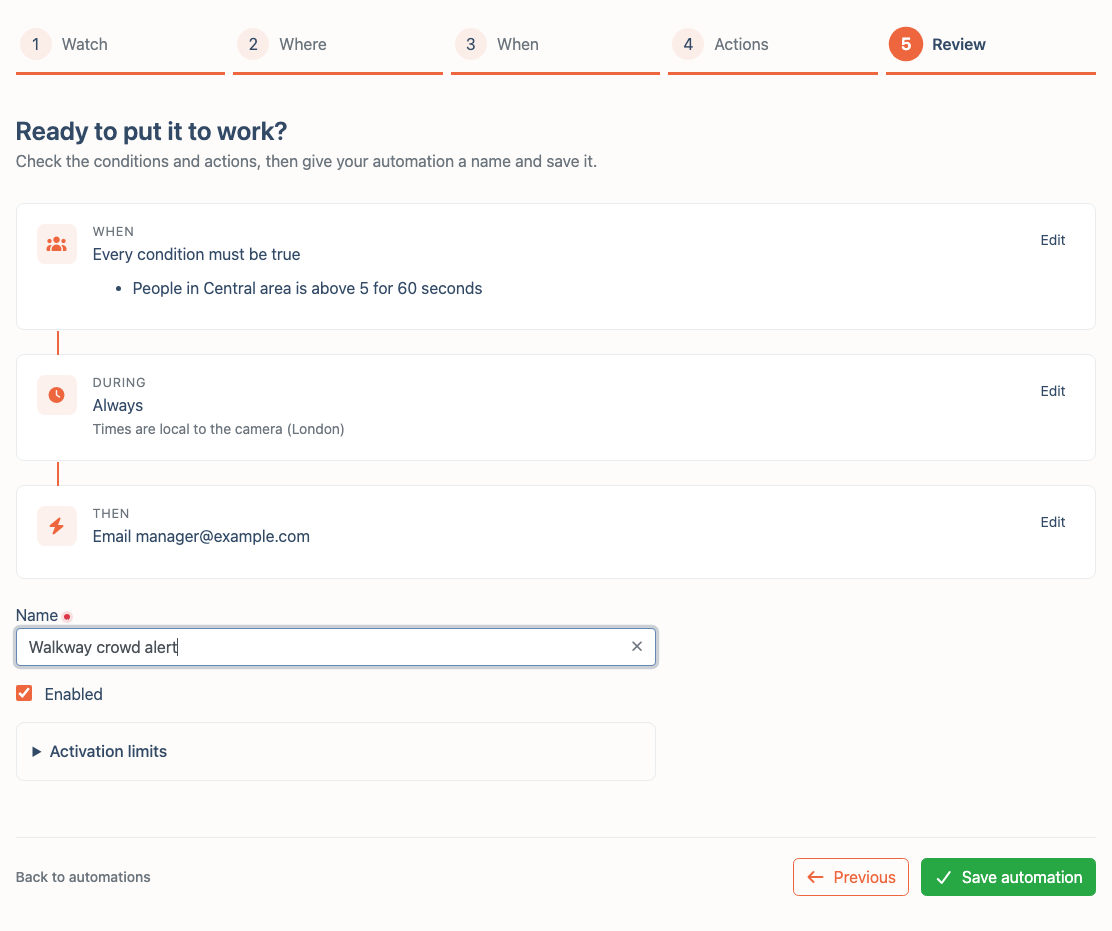
Setup is currently staff-only: contact TetherX support to configure an automation. It requires TetherX AI, Only Monitor turned off, compatible TetherBox software and suitable equipment for output actions. See Automations and Rules.
Live View
Camera wall efficiency: Camera walls refresh snapshots with less server processing. Changes to live access and schedules, and browser sign-outs, take effect within one minute.
Stable camera controls: The floating panel appears at its final width once PTZ options and the initial output reading are ready, rather than changing size as replies arrive. PTZ and single-relay panels stay compact, including when a preset has a long name. Only paired buttons or talkdown controls select the wider layout. Collapsing a section keeps the panel width stable. The shorter Deterrence heading fits the compact panel.
Deterrent toggles: Live View, fullscreen and the event operator console share Strobe, Siren and Relay controls. Their icons and On/Off labels follow camera state; an unknown state keeps an explicit Stop available. Talkdown remains separate from the built-in siren.
Manual Garrison Mode: Operators can activate and stop supported sirens and strobes on permitted cameras at the event's site. The control reports mixed states and individual failures, excludes relays, and cancels outstanding activations when Stop arrives.
Camera control checks: Live View limits how long it waits for camera controls on an unreachable TetherBox and skips checks on TetherBoxes known to be offline.
Relay controls: Commands no longer report an expired session while signed in. Live View reads output state when you enter a camera tile, without requiring a hover over the relay button. Unknown state and Stop have readable labels, and right-clicking the floating controls leaves the browser menu available. A single relay uses one button rather than also appearing in the PTZ dropdown.
Fullscreen camera walls: Choose Fullscreen layout to fill the display with the whole camera grid while keeping camera controls and an exit button available.
Faster connections: Supported remote cameras automatically use a low-latency connection, falling back to standard streaming if it cannot connect. Compatible local TetherBoxes try a direct connection. Live streams reconnect after restarts or stalls, keeping the last picture visible during recovery.
Notes: Accounts with notes-viewing permission can read notes in Live View, event details and record pages. Operators' access can be enabled in account or bulk editors; reading does not grant editing, and staff-only notes stay restricted.
Direct local streaming requires compatible TetherBox software.
TetherBox storage and account management
Faster TetherBox pages: TetherBox details open sooner. The offline report form loads when opened and starts with that TetherBox selected.
Camera status recovery: Compatible TetherBoxes can repair missing camera status sooner after a restart. Repeated requests remain limited, with delayed checks retried automatically.
Clearer drive status: The Storage tab brings drive health, USB enclosure details and partition information together. RAID arrays show capacity, usage, members and recovery progress, with member drives protected from formatting. Unused drives have their own State filter.
More useful diagnostics: Temporary USB read errors show a warning; confirmed faults remain critical. Ejected, Unplugged and Not detected distinguish deliberate removal from an unexplained loss. Recording warnings explain video and timestamp problems with investigation steps.
One drive health verdict everywhere: A drive now shows the same health on its TetherBox's Storage tab, the Drives list, its own page, the Health page and the health report email. Hover a badge to see every finding, with links to the drive and the storage guide. Read errors reported by the system now show on internal drives too, not only on USB ones.
Unused drives you can act on: The Health page's unused drives list shows each drive's TetherBox, site, timeline, health and why it is unused. A blank drive can be formatted from the list with a press and hold. When a drive cannot be formatted, the Format button explains why, such as read errors or a suspected fault, so a failing drive is replaced rather than formatted. A drive with read errors is described as unreadable, rather than as blank or as not mounted by the TetherBox.
Drive pages and the Drives list: A drive's page opens with a status summary of its connection, health, usage, lifespan, power-on time and temperature, followed by its details, a Format action and SMART analysis, laid out like a TetherBox's Details tab. The Drives list shows health beside the serial and the TetherBox's name, status and serial as on the TetherBoxes list.
Accurate drive ejections and identities: A drive ejected again after an earlier ejection was cleared shows as ejected, with when and from which device. An ejection that cannot be matched to a drive is listed as an ejection of an unknown disk rather than left out. A disk seen under both its own serial and its USB adapter's serial is kept as one drive, so its suspected fault stays visible. A USB adapter reporting an impossible size is flagged as such, and Format is refused for it. Slow drives are judged overloaded from their utilisation since the previous update, not from a five-second sample.
Why a USB drive cannot be read: When a USB drive has read errors, its status now says what the drive answered when asked why: no disk behind the USB adapter, a disk that is not spinning up, or the drive's own reply word for word when it is not one the platform recognises. A drive that could not be asked says so. Format explains each case. A drive state the platform does not recognise is shown as unknown rather than as read errors. Staff can see each attempt a TetherBox makes to recover a failing drive on its Storage tab.
TetherBoxes restart USB drives that stop answering: Instead of rebooting, a TetherBox now safely unmounts a USB drive that has stopped answering, restarts its USB connection, and mounts it again if it comes back with the same filesystem. Each outcome appears on the drive in the Storage tab, the Health page and the health report email: the drive came back, it did not come back and needs to be unplugged and plugged back in on site, or it came back with a different filesystem and was left unmounted. Drives reporting an internal failure, or not answering commands at all, are now identified as such. A drive that has recovered no longer shows read errors from before it came back.
Faster account updates: New accounts and access changes reach local TetherBoxes within seconds. Deactivated, deleted or removed accounts lose local sign-in access. TetherBoxes also repair missing or outdated settings automatically.
Disabling a TetherBox: The platform shows a clear disabled message for live view and event playback. Updated TetherBoxes also stop camera streaming and device monitoring until re-enabled.
RAID reporting, automatic settings repair and stopping monitoring on a disabled unit require compatible TetherBox software.
Integrations and API
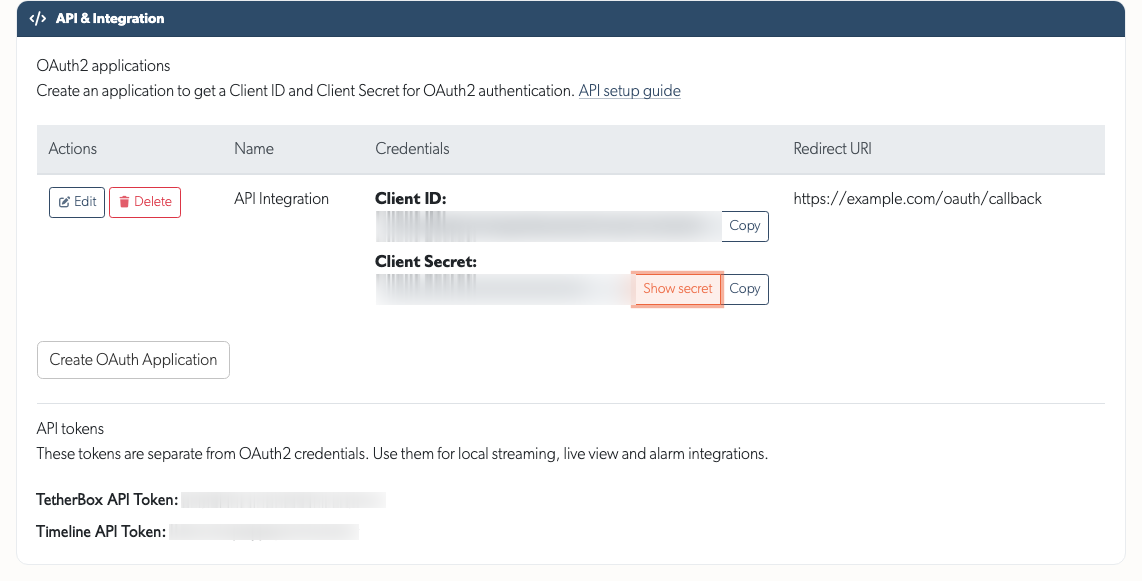
- OAuth2 setup: API Details separates OAuth2 applications from API tokens. Client ID and Client Secret replace App Key and App Secret, with Copy buttons and a hidden secret. Authorised accounts can create applications without a company assigned. See API Getting Started.
- AI results: The events API includes recorded hi-vis, hard-hat and face-covering assessments. Zone analytics adds
hard_hatalongsidehelmet, distinguishing construction hard hats from cycle or motorcycle helmets; people who cannot be assessed remain unassessed. - PicoFlex inputs: Each input has a configurable cooldown between alerts. Digital inputs alert on every activation by default; analogue inputs default to four hours. Panic, duress, medical, flood, fire and gas inputs alert even when the camera is disarmed or outside its recording schedule. Requires updated TetherBox software. See MicroChip.
- Patriot Systems: Alarms link directly to the full TetherX event. Observed, No Action Taken and Report Sent, including cleared ticks, reach Patriot as operator notes.
Other improvements
- Camera filters: Filter the camera list by whether TetherX AI is on or off to find cameras that need configuring.
- Italian: Choose Italian from the top-bar language menu for screens, emails and messages. Help articles remain in English.
- Email: Alert, account and billing emails have a consistent layout with a clear main action. Partner welcome packs include regional platform and programme information. Failed SpaceManager imports identify the affected customer records without exposing access codes or PINs.
- Mobile and smaller screens: More includes the additional pages available to your account. Long pop-up windows scroll while keeping Save and Apply visible.
Bug fixes
- Platform updates: Routine application updates keep pages responding while server processes update in turn. Real-time connections reconnect as needed.
- Camera list: Preview icons appear last, after password warnings and mask icons, and align consistently at the right of the name column, including cameras with an AI badge.
- Camera automations: Saving an automation from the camera window clears the loading spinner and leaves the saved rule visible.
- Live View: Site selection stays selected with saved walls; hover previews recover from temporary failures; fullscreen and quality changes preserve the picture, zoom and audio settings. PTZ controls hide unsupported actions, and preset edits and group ordering save reliably.
- Search and counting: Events newly matching an active filter appear in real time. Long searches stop with advice instead of loading indefinitely. Daily charts exclude today's incomplete figures; today's totals remain available separately.
- Access control: Site restrictions apply consistently to API reads, live images, real-time updates, exports and note attachments. TetherBox moves and queued deletions recheck permissions, and storage customer management respects permitted timelines, units and account roles.
- Sign-in and API: Google sign-in opens the account chooser. Activation emails include a copyable link. API errors return the correct status, empty reboot histories work, and snapshot exports explain when no selected cameras are online.
- Device management: Stream-setting summaries update after edits, drive-format progress stays visible, and SSD remaining-life readings correctly recognise new KingSpec NT-1TB 2242 drives. Microchip state checks and relay controls continue working after database maintenance.
- Health page and health report: A camera whose only problem is footage gaps is listed once, under Footage Gaps, rather than also among the cameras with issues.
- USB drive controls and the Storage tab: USB Reset, Power Off, Power On and Eject answer within 45 seconds, reporting a timeout if the TetherBox has not finished, and send the command only once. A slow command used to leave the button spinning until the browser gave up, and sent the command a second time. The Storage tab no longer reloads itself, losing its scroll position, when the page reconnects for live updates.
- Account and camera changes on TetherBoxes: On TetherBoxes running the current software, account sign-ins, sign-outs and removals, and camera and device updates, are only treated as done once the TetherBox confirms it has applied them. A change a TetherBox refuses, or does not answer, is retried rather than reported as delivered.
- Navigation and audit history: Table menus and map windows appear above overlapping controls. Routine status reads no longer clutter the audit trail; relay commands remain recorded.