

Table of Contents
People Counting
People Counting answers "how many came in, and how many went out?" for a doorway, a gate or a walkway. A line is drawn across it on the camera's picture, TetherX AI on the TetherBox counts every crossing in each direction, and the People Counting page shows the totals for the last 30 days, or hour by hour for any one day.
Each crossing is counted under what crossed: people, bicycles, vehicles or animals. A car park entrance therefore reports its cars and its pedestrians separately, rather than one figure that mixes the two.
For a notification when the current number of people in an area stays above or below a threshold, see Automations and Rules. People Counting totals crossings over time; an automation checks the people detected inside a drawn region.
What You Need
- An AI capable TetherBox. Counting runs on TetherX AI, which needs a TetherBox with an AI accelerator module or a dedicated graphics card. Hardware Specifications lists which units have one.
- TetherBox software 6.29 or later. Earlier releases cannot read a counting line. TetherBox Firmware Updates explains how units are updated.
- A camera that is online and recording, with a clear view of the place people cross.
- TetherX AI turned on for that camera. TetherX does this when the line is drawn. A camera without TetherX AI keeps its line but counts nothing.
- Support Access turned on for your timeline. The counting line is drawn by TetherX, and Support Access is what lets us open the camera to draw it. Only an Admin account can turn it on.
- People Counting Access for every account that needs to read the figures. It is off for every account until somebody switches it on.
The camera's Rules tab is currently shown only to Staff users. Giving an account People Counting Access lets it read the totals; it does not expose the line editor. TetherX Support configures the line for you.
Tip: People Counting is set up by TetherX. Contact TetherX Support with the cameras you want counted, and we will check the TetherBox and draw the lines.
Choosing Where the Line Goes
A good counting line makes everybody who passes through cross it once, and nobody who is only walking past cross it at all.
- Draw it across the floor, where feet cross. People, bicycles and animals are counted at the bottom centre of what the AI detects, which is their feet or wheels. Vehicles are counted at the centre of the vehicle.
- Span the whole opening. A line that stops short of one side lets people walk round its end without being counted.
- Keep it clear of anywhere people stand or queue. Somebody standing on the line can cross it several times without going anywhere.
- One counting line per camera. To count two doorways, use a camera that faces each one.
- Decide which side is Entry. The line counts both directions. Tell us which side of the line is inside, so entries and exits are the right way round.
Setting Up Counting
- Check the What You Need list, and ask an Admin to turn on Support Access for the timeline.
- Contact TetherX Support with the site, the camera, the doorway or gateway to count, and which side of it is inside.
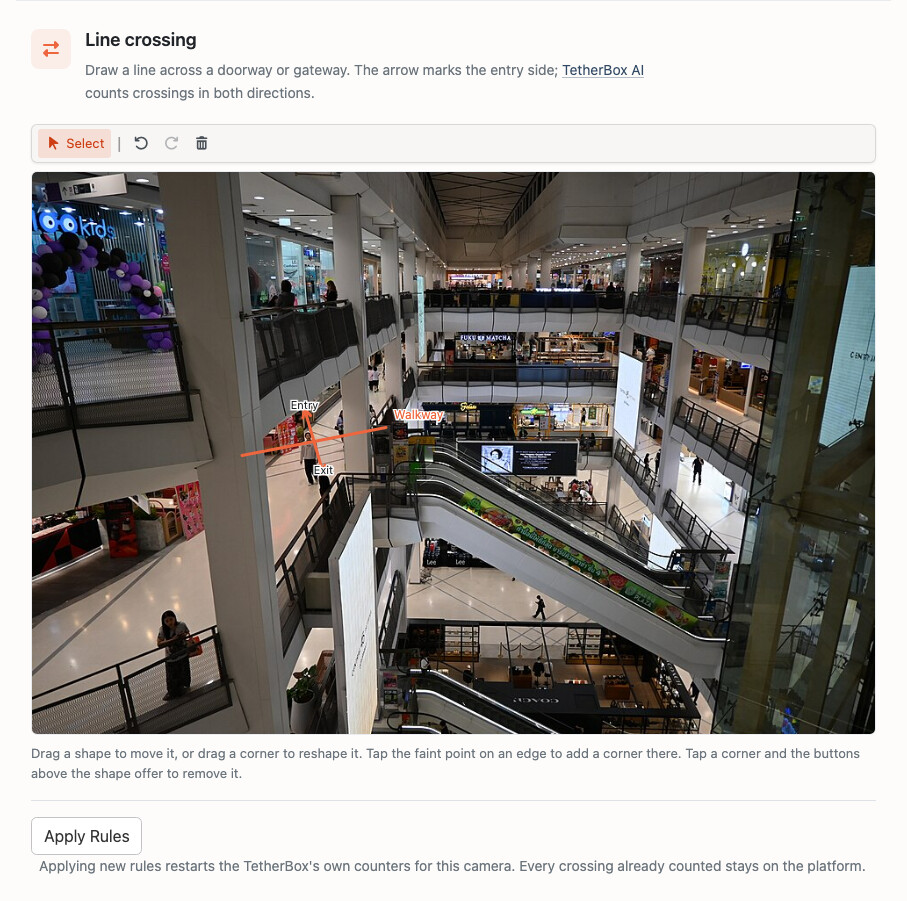
- TetherX turns on TetherX AI for the camera and draws the counting line on the camera's Rules tab, under Line crossing. The line is named after the place it counts, such as "Walkway", and that name is what the People Counting page shows.
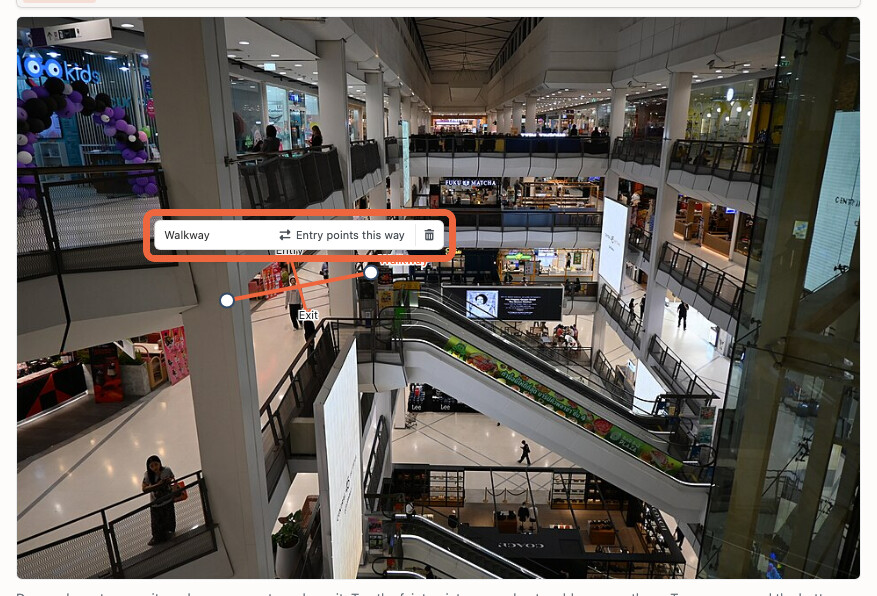
- The arrow marked Entry points to the side you said was inside. Entry points this way above the line swaps the two sides.
- TetherX presses Apply Rules, which sends the line to the TetherBox. Counting starts as soon as the TetherBox has loaded it.
- Give People Counting Access to the accounts that need the figures, as described in Giving Accounts Access.
- The counting line on the Rules tab. The line crosses the walkway, with Entry pointing into the centre and Exit pointing out.
- The line's own controls. Selecting the line shows its name and Entry points this way, which swaps the Entry and Exit sides.
- Applying the line. Nothing reaches the TetherBox until Apply Rules is pressed.

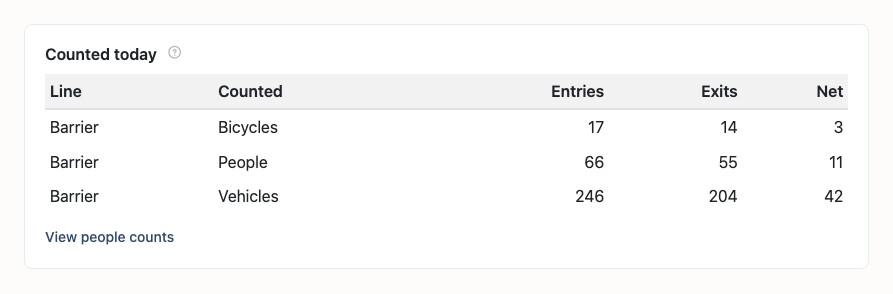
Once the line is applied, Counted today below it lists what each class has counted so far today, which is how TetherX confirms counting has started.
Moving or redrawing a line restarts the TetherBox's own counters for that camera. Every crossing already counted stays on the People Counting page, so the figures from before the change were counted where the line used to be.
Giving Accounts Access
The People Counting page is shown only to accounts with People Counting Access. Staff, Admin and Integrator accounts can switch it on for other users.
- Go to Admin → Users and select the user
- Open the Permissions tab
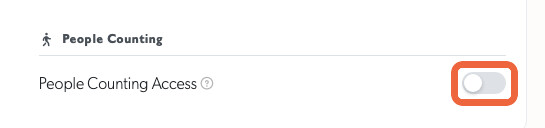
- Under People Counting, switch on People Counting Access
An account limited to particular sites or cameras sees the counts for those sites and cameras only, as everywhere else in TetherX. User Permissions covers the other permissions on the same tab.
Reading the Counts
Select Counting in the main menu to open the People Counting page.
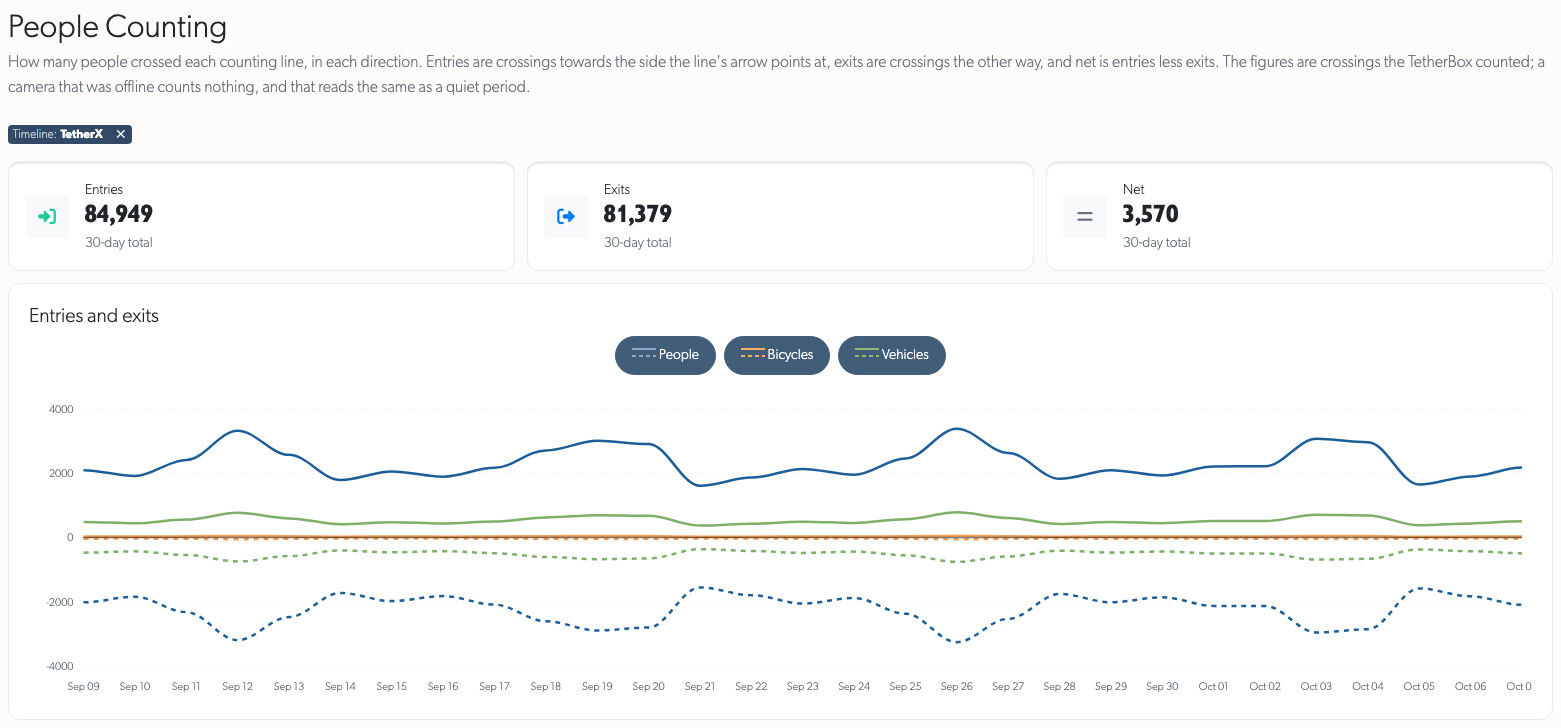
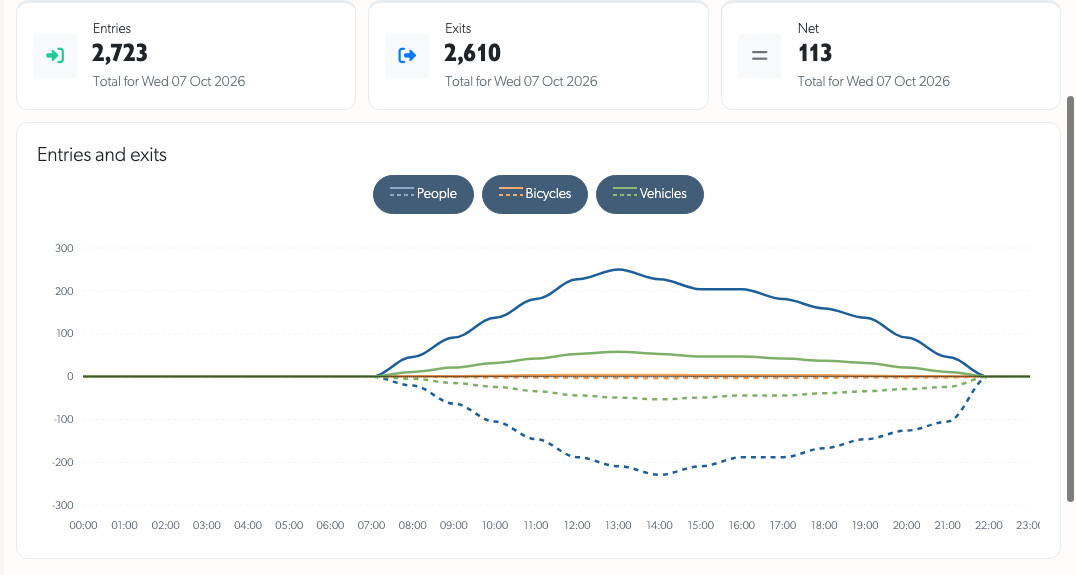
- Entries are crossings towards the side the arrow marks as Entry. Exits are crossings the other way. Net is entries minus exits.
- The last 30 days are shown day by day when no date is chosen. The three totals cover all 30 days, including today so far. The chart stops at yesterday, so an unfinished day is not drawn beside complete ones.
- The chart draws entries above the zero line and exits below it, dashed, in one colour per class. The buttons above the chart turn a class on and off, and the three totals follow what is shown.
- Pick a date in the filter to see that day hour by hour, from 00:00 to 23:00.
Dates and hours are in the site's own time zone, so a site's day starts at its own midnight wherever you are reading from.
Choosing the Counting Interval
With no date selected, Daily shows the last 30 days. Press the calendar icon or date field to choose a date and open Hourly automatically, then choose 15 minutes or 5 minutes for more detail. Disabled intervals have an info button explaining how to enable them. Select Daily to return to the overview in one click, or clear the date. Dates outside the supported 30-day window cannot be selected.
Drag across the chart to focus on a time period. The From and To fields, chart, totals and exports follow that selection. Select Whole day above the chart to restore the full day. Thin vertical lines mark each hour. Angled labels use regular clock intervals, such as 00:00, 02:00 and 04:00, with spacing that adjusts to the available width. Shorter selected periods show finer time labels. Hover over a point to see its exact time and count.
The Time Range tab offers the same Morning, Afternoon, Evening, Night and Business Hours presets as Events, Recordings and ANPR. The Time tab lets you enter From and To times and press Apply. It uses five-minute buckets in the site's clock. The end time includes the bucket it falls in. A range from 09:15 to 09:19 includes the 09:15 bucket and excludes 09:20. A range whose end is before its start crosses midnight.
Exporting the Figures
Select Export CSV or Export Excel above the chart. The file is prepared in the background and emailed to you. It holds one row for every five-minute interval in which something crossed a line, for the period and filters on screen, with the date and hour in the site's time zone, the site, camera, line, class, entries, exits and net, so a spreadsheet can total it to any period you need.
Counting by Class
The Counted filter selects people, bicycles, animals, all vehicles or one vehicle type.
- People - Everybody on foot, and every cyclist.
- Bicycles - Bicycles, counted separately from their riders.
- Vehicles - All vehicles, including those whose type is unknown. Choose Cars, Lorries, Buses or Motorcycles for a separate count. This needs updated TetherBox AI software; older counts remain grouped under Vehicles.
- Animals - Dogs, cats and other animals.
A cyclist crossing the line is counted twice: once under People and once under Bicycles. The People figure therefore already includes every rider, and adding the Bicycles figure to it would count them again.
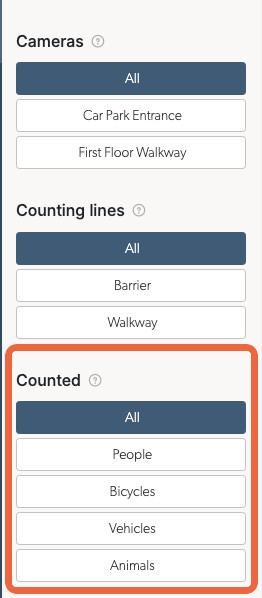
The same filter narrows the page by Date, Time, Sites, Cameras and Counting lines. Times use five-minute buckets in the site's time zone, and the camera and line lists show only those that have counted something in the last 30 days.
Tip: Net is the number of people inside a building only when every way in and out has a counting line. With one door counted, people who leave by another door never appear as exits.
Troubleshooting
There is no Counting entry in the menu. The account does not hold People Counting Access, which is off until it is switched on. If the account holds it and the entry is still missing, ask your integrator to check the timeline's Menu settings.
The page says no crossings have been counted. Either nothing has crossed the line in the period shown, or the camera is not counting. A camera counts nothing while it is offline, before its line has been applied, while TetherX AI is off for it, or while its TetherBox runs software older than 6.29.
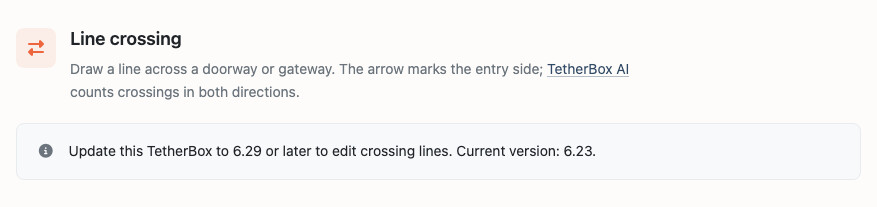
The camera's Rules tab asks for a TetherBox update. The TetherBox runs software older than 6.29. Update it, and the counting line can then be drawn.
The Counting page is available but the camera's Rules tab is missing. The line editor is currently Staff-only. Contact TetherX Support to draw, move or reverse a line; the account's People Counting Access controls the totals page separately.
Entries and exits are the wrong way round. The Entry side of the line is reversed. Ask TetherX Support to swap it with Entry points this way and apply the line again. Crossings already counted keep the direction they were counted with.
A quiet day looks the same as a day the camera was offline. The page counts the crossings the TetherBox saw, so a camera that was offline counts nothing, and that period reads as zero. Check that the camera was online over the period before reading a gap as a quiet day.
The People and Bicycles figures seem to overlap. They do by design: a cyclist is counted under both. See Counting by Class.
Related Articles
TetherX AI - The on-device AI that detects and counts what crosses the line. Support Access - Turning on the access TetherX needs to draw a counting line. User Permissions - People Counting Access and the other permissions on a user. Camera Masking - Drawing the areas a camera watches and ignores, with the same editor. TetherBox Firmware Updates - How a TetherBox reaches software 6.29 or later. Automations and Rules - Notify users or operate outputs after a people count has stayed above or below a threshold.
The camera picture in the Rules tab screenshots is a shopping centre interior by PattayaPatrol (opens in a new tab), licensed under CC BY-SA 4.0 (opens in a new tab), resized and shown with the counting editor drawn over it.
Referenced in: