

Table of Contents
Attachments
Upload images, PDFs, and videos directly into notes across the platform. A central management page lets you view all uploaded files, see where they are used, and clean up unused attachments.
Adding Attachments to Notes
Notes editors on TetherBoxes, Cameras, Sites, companies, zones, and alarms all support file attachments. Click the attach button in the editor toolbar to upload a file, or drag and drop directly into the editor. You can also paste images from the clipboard.

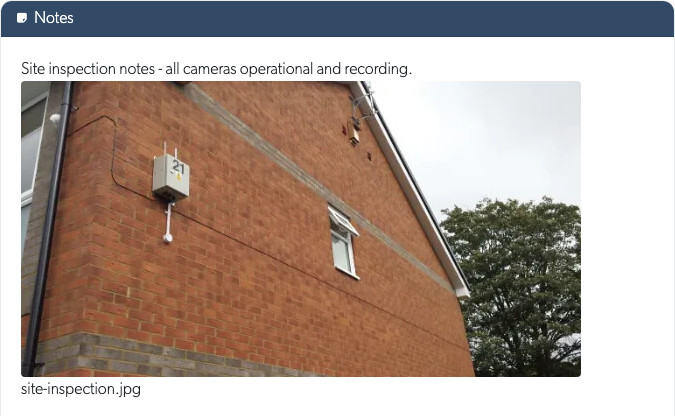
Uploaded images display as inline thumbnails within the note. Other file types appear as downloadable links.
Supported file types (up to 100MB):
- Images - JPEG, PNG, GIF, WebP
- Documents - PDF, Word (.doc, .docx), Excel (.xls, .xlsx), PowerPoint (.ppt, .pptx), CSV
- Videos - MP4, MOV, AVI, MKV, WebM
Managing Attachments
Go to Settings and click Attachments to view all uploaded files in one place. Each row shows the filename with thumbnail preview, content type, file size, which resource the attachment is referenced in, who uploaded it, and when.
Filtering
Use the sidebar filters to narrow results.
- Status - Show all attachments, only active (currently referenced in a note), or only orphaned (no longer referenced anywhere).
- File type - Filter by images, videos, or PDFs.
Deleting Attachments
Click the delete button on any attachment to remove it permanently. Removing an attachment from a note does not delete the uploaded file - use this page to find and clean up unused files afterwards.
Tip: Use the Orphaned status filter to quickly find and remove attachments that are no longer referenced in any note or resource.
Related Articles
- Audit Log - Track all user activity and system changes
Referenced in: