

Table of Contents
This TetherBox Requires External Storage
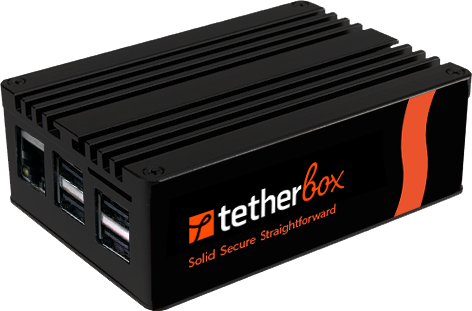
This TetherBox ships as a base unit without dedicated recording storage. If you intend to record cameras, you must attach an external drive before recording is enabled. This is not optional.
Warning: Recording without external storage will wear out the unit's internal system drive far sooner than its rated lifespan, eventually preventing the TetherBox from booting reliably.
Why External Storage Is Required
A base TetherBox is built around a small piece of internal storage - an SSD on most models, or a MicroSD card on compact Raspberry Pi units - that holds the operating system, configuration, and a limited cache. Video recording is a constant, write-heavy workload - every camera writes data to disk every second of every day. Pointing that workload at the internal storage causes two problems:
- Premature storage failure - all flash storage has a finite number of write cycles, and the internal drive or card is sized for the operating system, not for non-stop recording. Continuous video writes can exhaust its write budget in months rather than years. MicroSD cards in particular are not designed for sustained 24/7 writes and will fail quickly under recording load.
- Insufficient capacity - the internal drive is too small to hold a useful retention window, so footage is lost within hours or days instead of weeks.
A dedicated external drive solves both issues by providing the capacity for a meaningful retention period, isolating recording I/O from the operating system drive, allowing easy expansion as your needs grow, and being trivially swappable if a drive ever fails.
Setup Process
Requirements
- External SSD or 24/7-rated HDD - see Storage Hardware Recommendations for tested models and minimum capacity guidance
- Connection: USB port on the rear of the TetherBox
Installation Steps
Power down your TetherBox and connect the external drive via the USB port on the rear
Power on the TetherBox, then go to Admin → TetherBoxes, select your TetherBox, and open the Storage tab
Format & Enable the external drive (this erases any existing data)
Wait for the format to complete and the TetherBox will begin recording to the external drive automatically
Danger: Formatting will permanently erase all data on the external drive.
Verification
After setup, verify the drive is recognised:
- Go to Admin → TetherBoxes, select your TetherBox, and open the Storage tab
- Confirm the external drive appears with the correct capacity
- Check recording status and storage usage
- Verify cameras are recording to the external drive
Considerations
- Dedicated use - keep the drive dedicated to the TetherBox and don't share it with other devices
- Connection stability - ensure the USB cable is firmly seated to prevent accidental disconnection
- Capacity monitoring - monitor storage usage in the admin panel and plan upgrades before you fill up
- Power - most external drives draw power directly from the TetherBox USB port; larger HDDs may require their own power supply
If the external drive ever fails, the TetherBox can temporarily fall back to its internal drive while you source a replacement. Retention will be very short in this mode and the internal drive should not be relied on for ongoing recording - replace the external drive as soon as possible.
Related Articles
- Replacing a TetherBox Drive - How to physically replace SSDs, NVMes, and MicroSD cards
- Storage Hardware Recommendations - Specific SSD and HDD models for 24/7 recording
- Hardware Specifications - Complete specs
- TetherBox Recording Capacity - Calculate your needs
Referenced in: