

Table of Contents
Push Notifications
A push notification reaches your phone within a second or two of the event. Push needs the iOS or Android app; a mobile browser cannot receive one.
Each kind of alert carries its own sound, so you can tell an alarm from a camera going offline without looking at the phone.
| Kind | Sound chosen under | Sent for |
|---|---|---|
| Alarm | Alarm Events | Alarm panel activations and state changes |
| Health | Health Events | A TetherBox, camera or monitored device going offline or coming back |
| Other events | Other Events | Analytics alerts, number plate matches, and an event somebody shares with you |
Turning Push Notifications On
- Install the app and sign in - see Native Apps
- Accept the notification permission prompt the first time the app opens
- Click your profile icon and open the Notifications tab

- Set Delivery Method to Push only or Email and push
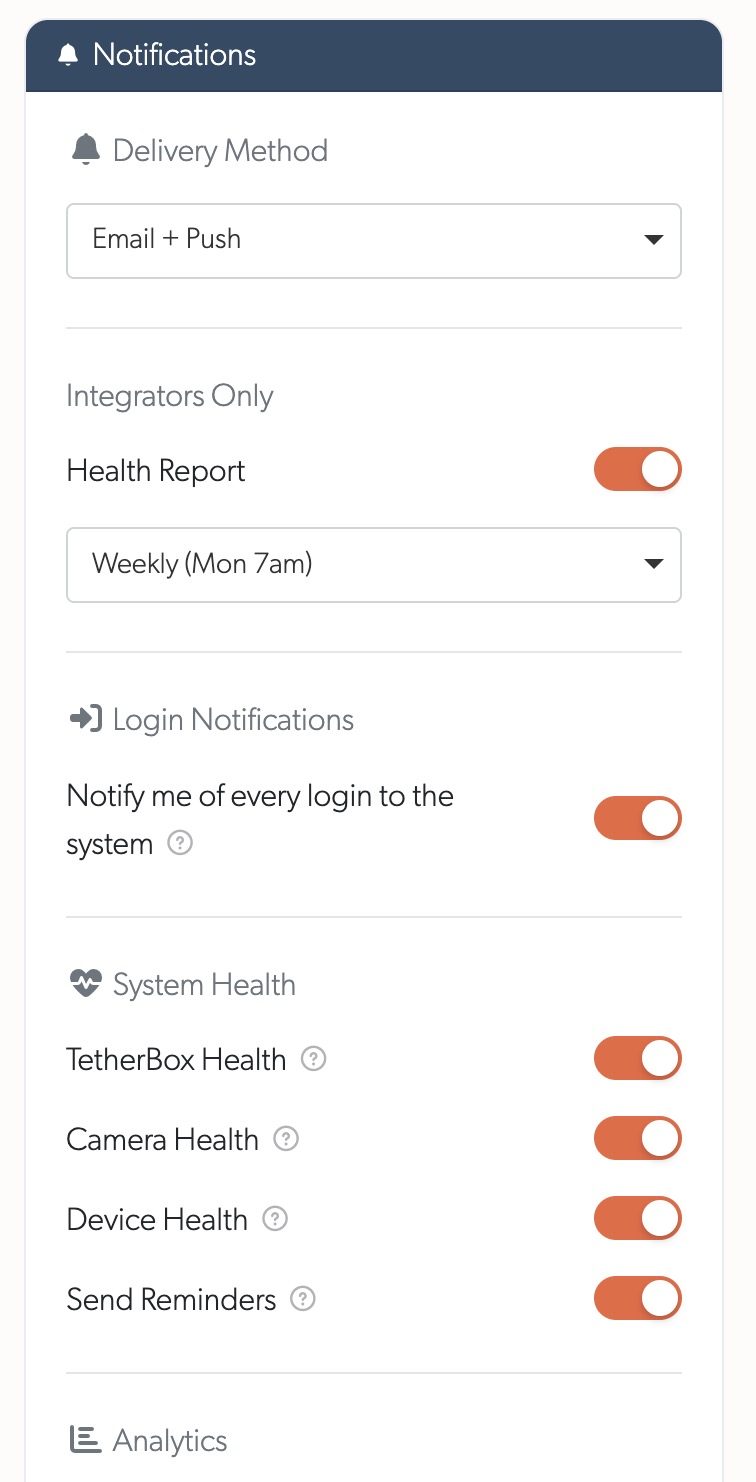
The app shows the same tab, so you can set a handset up on the handset itself.
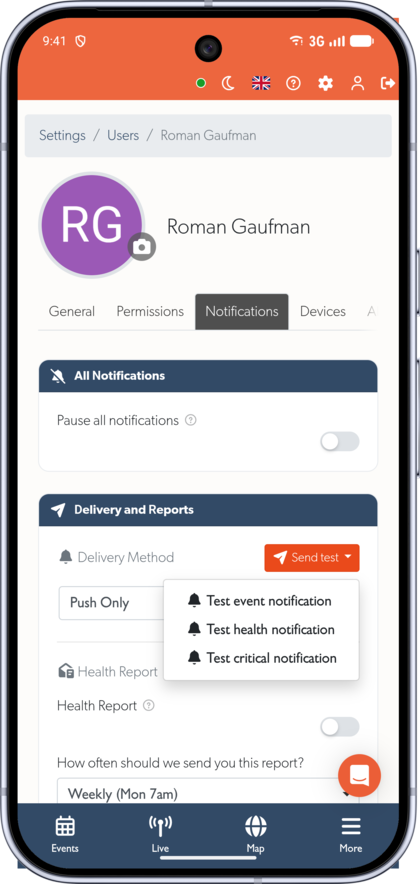
Notifications covers every other setting on that tab.
Tip: Signing out of the app removes that handset from your account until you sign back in. Signing in on a new phone adds it without affecting your other devices.
Sending Yourself a Test Notification
Send test sits beside Delivery Method. It offers one test per kind, because each arrives differently and a working event push proves nothing about an alarm. Each test sends the real template with a stand-in name, so it reads exactly like the genuine notification.
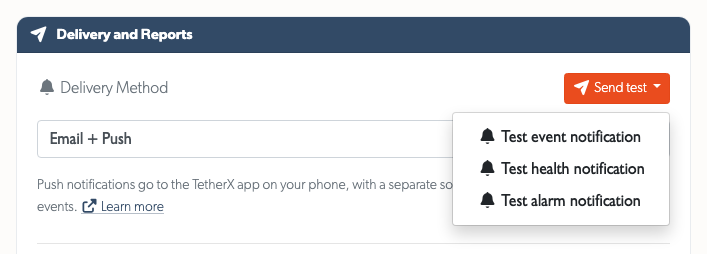
A test that cannot be delivered says why:
| What it says | What to do |
|---|---|
| All notifications are paused for this account | Turn off Pause all notifications |
| This account is set to email only | Change Delivery Method to include push |
| No devices are signed in to the TetherX app | Install the app and sign in |
| Push notifications are switched off for this platform | Ask your administrator; this is platform-wide |
Tip: A test that arrives but plays no sound means push is working and the cause is a phone setting. Go to Troubleshooting a Silent Notification.
On iPhone and iPad
Tap the settings button in the top corner of the app, then choose a sound under Alarm Events Sound, Health Events Sound and Other Events Sound. Each has three built-in sounds, or import your own audio file.
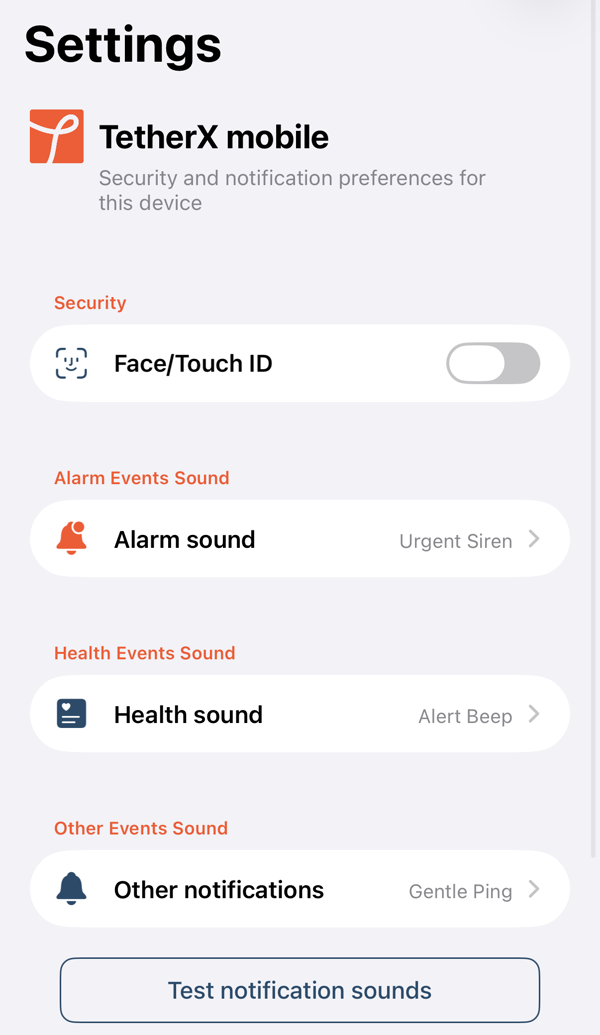
Test notification sounds at the bottom plays all three in turn, so you can compare them.
Warning: Playing a sound from this screen proves only that the file is there. The app plays it directly, while a notification sound goes through the system. Use Send test on your Notifications tab to check the real path.
On Android
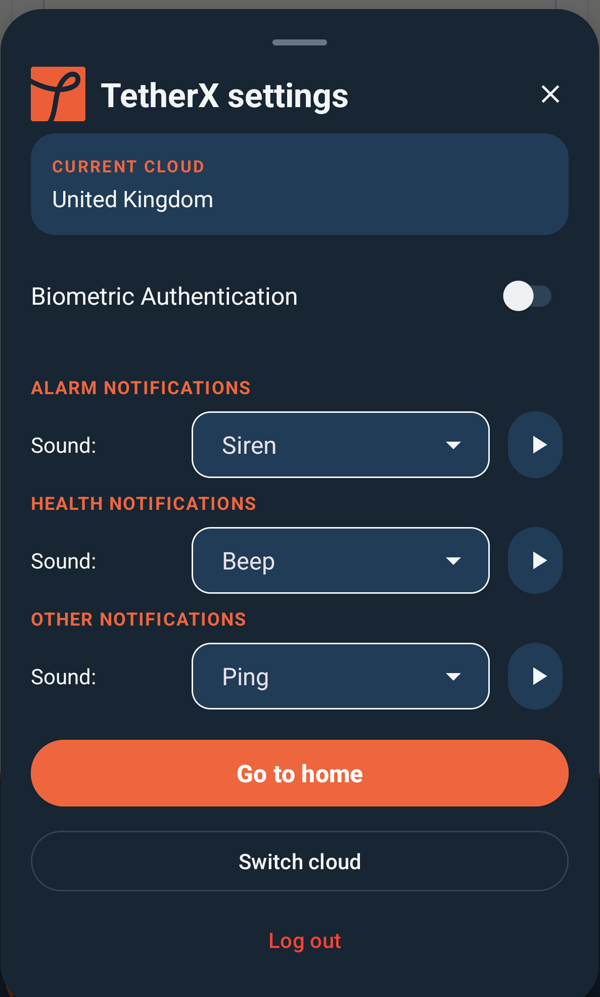
Tap the settings button in the top corner of the app, then choose a sound under ALARM NOTIFICATIONS, HEALTH NOTIFICATIONS and OTHER NOTIFICATIONS. The play button beside each previews it, and Custom lets you pick your own audio file.
What an Alarm Does That the Others Do Not
An alarm on Android is treated as an alarm by the operating system, not as a notification:
| Behaviour | Alarms | Health and other events |
|---|---|---|
| Volume slider it follows | Alarm volume, which most phones will not let you mute | Notification volume, silenced with the phone |
| Do Not Disturb | Sounds through it, once you grant Do Not Disturb access | Silenced |
| Vibration | Always | Off unless you turn it on |
| Lock screen | Opens TetherX full screen and wakes the display | Ordinary banner |
That is why an alarm still wakes you on a phone that is otherwise quiet for the night.
The app asks you for two permissions the first time, and asks once only:
- Allow alerts during Do Not Disturb, so alarms sound through it. If you dismissed it, turn TetherX on under Settings → Apps → Special app access → Do Not Disturb access. Without it an alarm is silenced by Do Not Disturb like anything else.
- Allow full-screen notifications (Android 14 and later), so an alarm opens on the lock screen rather than appearing as a banner. Turn it on under Settings → Apps → TetherX → Full-screen notifications.
Note: TetherX creates its notification categories when the first notification of that kind arrives, so Alarms, Health and Events appear under Settings → Apps → TetherX → Notifications only after you have received one of each. Sending yourself a test is the quickest way to make them appear.
Warning: Android, not TetherX, owns a category once it exists. A sound you set in Settings → Apps → TetherX → Notifications overrides the app's choice, and you can silence a category there even though the app asks for it to be urgent. A sound changed in the app takes effect on the next notification of that kind, and applying it replaces the category, which clears any changes you made to it in Android's settings.
On Apple Watch
To keep your chosen sounds, turn TetherX notifications off on your Apple Watch. While a paired Watch is on your wrist it takes the alert, and it plays its own standard tone instead of the sound you picked. Your iPhone stays completely silent, so the alarm sound you chose is never heard.
On your iPhone:
- Open the Watch app (the black app with a watch face icon, installed by iOS)
- Tap the My Watch tab at the bottom
- Tap Notifications
- Scroll down to the list of apps and find TetherX
- Turn the TetherX switch off
Alerts then stay on the iPhone and play the sound you chose for each kind. Nothing else about TetherX changes, and you can turn it back on whenever you like.
Why the Sound Cannot Follow the Watch
This is a watchOS limitation rather than something TetherX can work around. Apple gives no app any way to supply its own notification sound on the Watch, so building a TetherX Watch app would not change it either. On the wrist you get Apple's standard notification tone and tap, whatever the alert is.
Tip: Worth deciding deliberately rather than just switching it off. The Watch is better at getting your attention, because it taps your wrist whatever the phone is doing. The phone is better at telling you which kind of alert arrived, because only it plays the three different sounds.
Troubleshooting a Silent Notification
A notification that appears but plays no sound is almost always a device setting. First ask whether any app is making a notification sound: if nothing is, the cause is on the phone and applies to everything on it.
A Paired Watch Is Taking the Alert
Check this first. A connected Apple Watch on your wrist receives the alert and the phone stays silent, for every app, while the notification still appears on the phone. Turn the watch off, or take it off your wrist, and send another test. The Watch has its own settings: check the TetherX entry under Settings → Notifications on the Watch, and whether Silent Mode is on there.
Ringer and Alert Volume
Notification sounds follow the ringer volume, not the media volume, and the volume buttons usually adjust media. A phone playing video at half volume can have its ringer at zero.
- iPhone: Settings → Sounds & Haptics, plus the Silent switch or Action Button
- Android: Settings → Sound & vibration - check notification volume, and alarm volume separately for an alarm
Focus, Do Not Disturb and Sleep
A Focus silences notifications without hiding them, and can switch on by itself: a Sleep Schedule turns Sleep Focus on at a set time, and a Focus can also trigger by location or when an app opens. Check Settings → Focus and the Focus indicator in Control Centre.
Notification Summary and Prioritisation
Two iOS features deliver a notification quietly on purpose, both under Settings → Notifications, and both can be switched off for TetherX alone:
- Scheduled Summary holds notifications and delivers them in a batch
- Prioritize Notifications lets Apple Intelligence score importance, and a notification it scores low loses its sound and does not wake the screen
Per-App Notification Settings
Check Settings → Notifications → TetherX on iPhone, or Settings → Apps → TetherX → Notifications on Android. Confirm notifications are allowed and Sounds is on.
Settings on Your TetherX Account
If nothing arrives at all, rather than arriving silently, check the account rather than the phone:
- Pause all notifications is off
- Delivery Method includes push
- You are signed in to the app on that phone
- For an event or analytics alert, both the site and the camera are armed - see Notifications#Arming Sites and Cameras
Tip: Use Send test after each change. It goes to every device signed in to your account and reports how many that was, so you get a definite answer rather than waiting for a real event.
Related Articles
- Notifications - Every notification setting, who receives what, and arming sites and cameras
- Native Apps - Installing the iOS and Android apps and what else they add
- Camera Notification Settings - Fine-tune which event types trigger an alert
- Reducing False Notifications - Filter false alerts at source
- Health Report - Scheduled health summaries by email
Referenced in: